Lab 1: Sync On-Premises AD to Entra ID
Table of Contents
Lab 1: Sync On-Premises Active Directory to Microsoft Entra ID
[!abstract] Summary Goal: Install Microsoft Entra Connect Sync on a Windows Server VM and synchronize the users of the on-premises Active Directory forest (
aden.local) to a Microsoft Entra ID tenant. Result: On-premises users appear in Entra ID with On-premises sync enabled = Yes, and password hash synchronization is enabled. Scope: This page covers the Entra Connect part (download, install, configure, verify). The Windows Server VM and the AD forest were built beforehand.
1. Overview
An organization often has users in an on-premises Active Directory (AD) but also needs the same identities in the cloud. Entra Connect Sync reads the on-premises directory and writes matching user objects to the Entra ID tenant. This is called hybrid identity.
flowchart LR
    AD["On-premises AD<br/>forest: aden.local"] -- "import" --> SYNC
    subgraph VM["Windows Server VM"]
        SYNC["Entra Connect Sync<br/>(sync engine + local SQL Express)"]
    end
    SYNC -- "export users +<br/>password hash sync" --> ENTRA["Microsoft Entra ID tenant"]
    ADMIN["Cloud-only Global Admin<br/>(used by the wizard)"] -. "authorizes setup" .-> ENTRA
The Entra admin center offers two sync products. This lab uses Connect Sync.
| Connect Sync | Cloud Sync | |
|---|---|---|
| What it is | Full sync application installed on your server | Lightweight agent, configured from the portal |
| Installed via | AzureADConnect.msi wizard | Cloud provisioning agent |
| Local components | Sync engine and a local SQL Express database | Agent only |
| Used in this lab | Yes | No |
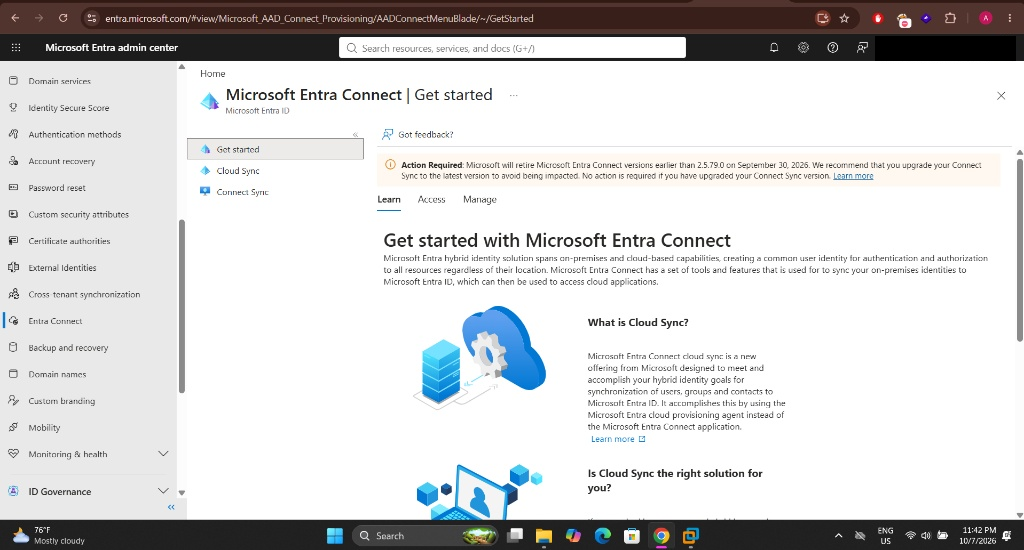 Get started page. It describes Cloud Sync, which uses the cloud provisioning agent instead of the Entra Connect application.
2. Prerequisites
| Requirement | Detail in this lab |
|---|---|
| Entra ID tenant | Existing lab tenant, with access to https://entra.microsoft.com |
| Windows Server VM | Windows Server evaluation VM that belongs to the on-premises domain |
| On-premises Active Directory | Forest aden.local with test users |
| Domain admin credentials | ADEN\Administrator, used by the wizard to connect to AD |
| Cloud-only Global Administrator | Created in section 4 |
| Internet access on the VM | For the Microsoft sign-in windows in the wizard |
| A way to move the installer | Download on the host, then copy and paste the file into the VM |
[!note] Non-routable domain
aden.localis not an internet-routable domain and cannot be verified in Entra ID. This affects three choices later: Express Settings is not suitable (5.1), and the UPN suffix needs an override (5.6).
3. Download the installer
Why: The wrong page gives you the wrong file or the wrong product.
- On the host machine, sign in to https://entra.microsoft.com with your lab administrator account.
- Go to Identity > Hybrid management > Microsoft Entra Connect.
- Open Get started and select the Manage tab.
- Under Manage Microsoft Entra Connect Sync, choose Download Microsoft Entra Connect Sync, then Accept terms & download.
- Wait for
AzureADConnect.msi(about 182 MB) to finish. - Copy the file into the Windows Server VM.
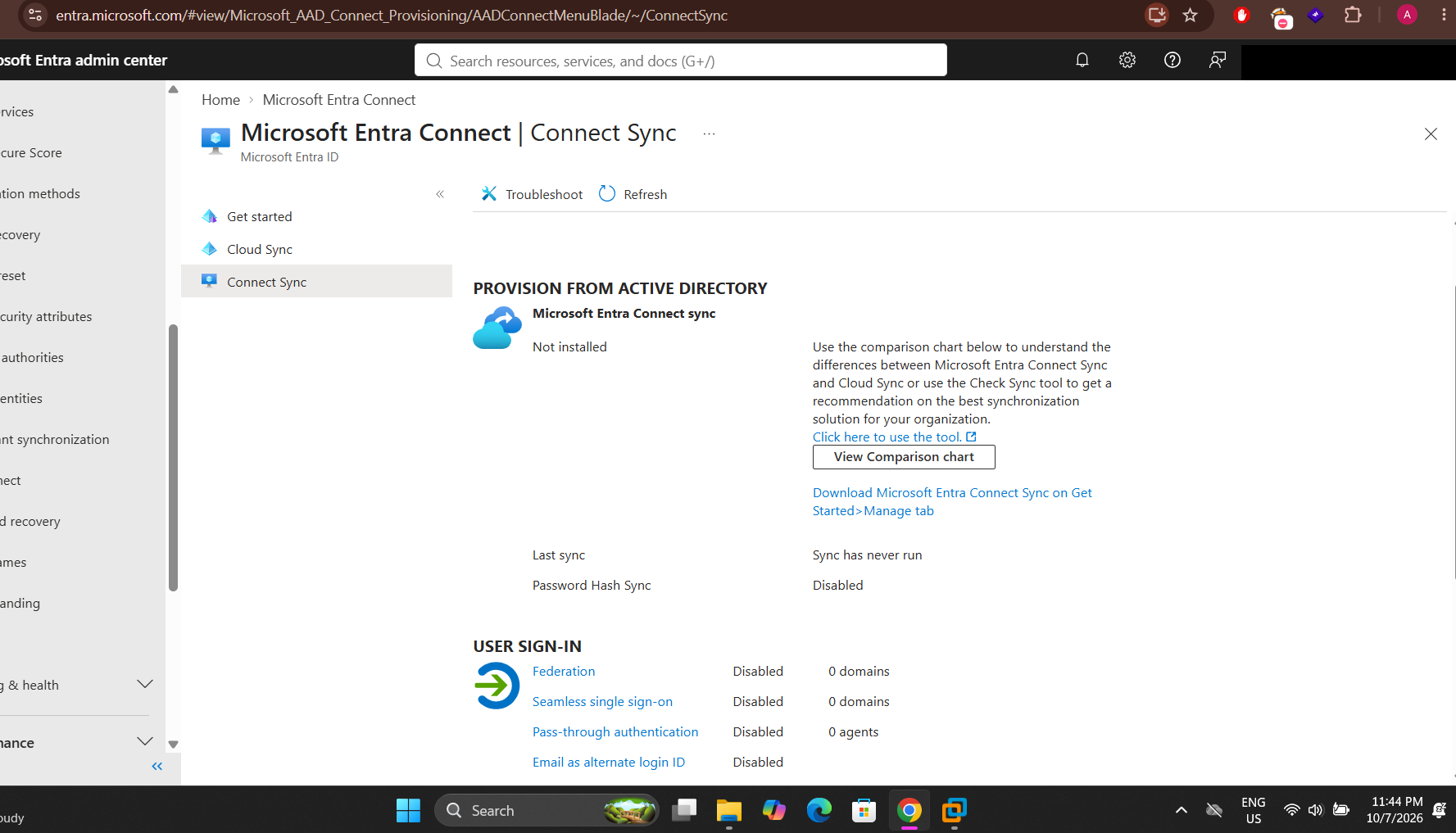 Connect Sync page before installation: “Not installed”, “Sync has never run”, Password Hash Sync “Disabled”. Compare with section 6.
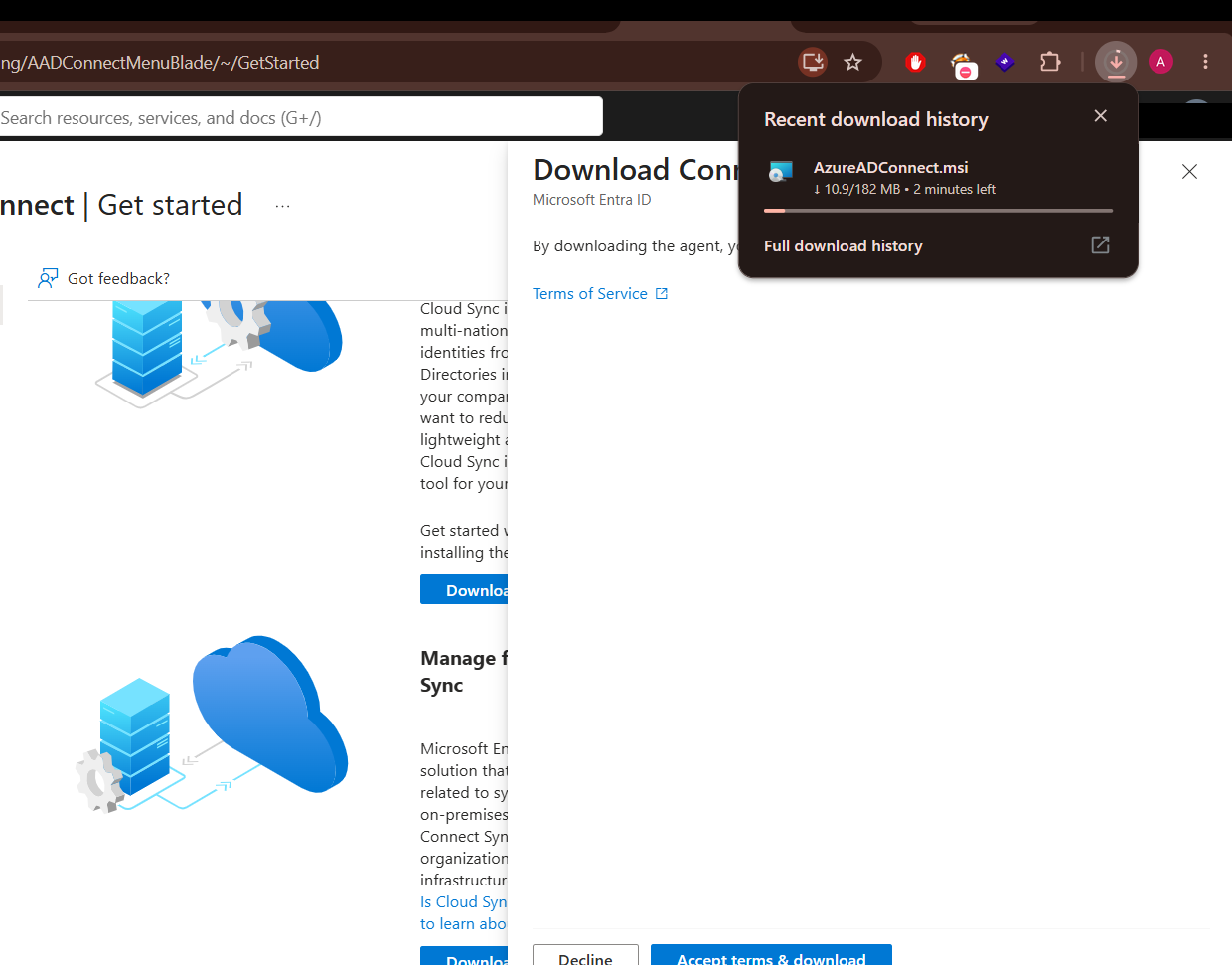 Download panel. The browser shows
 AzureADConnect.msi downloading.
[!warning] Do not use these
- The old Microsoft Download Center link gave me
DecommissionDownloadCentre.pdfinstead of the installer.- Cloud Sync is a different product. Choose Connect Sync.
[!tip] Use the current version The portal banner says Microsoft retires Entra Connect versions earlier than 2.5.79.0 on 30 September 2026. Always download from the tenant portal so you get a supported version.
4. Create a cloud-only admin account
Why: The wizard signs in to Entra ID to set up the sync connection. It needs a cloud-only Global Administrator. The personal Gmail account used to sign in to the portal was not accepted by the wizard.
- In the Entra admin center go to Users > All users > New user > Create new user.
- Username
syncadminwith the tenant’sonmicrosoft.comdomain (syncadmin@<tenant>.onmicrosoft.com). - Display name
Sync Admin. Record the temporary password somewhere safe. - Open the new user, go to Assigned roles > Add assignments, and assign Global Administrator.
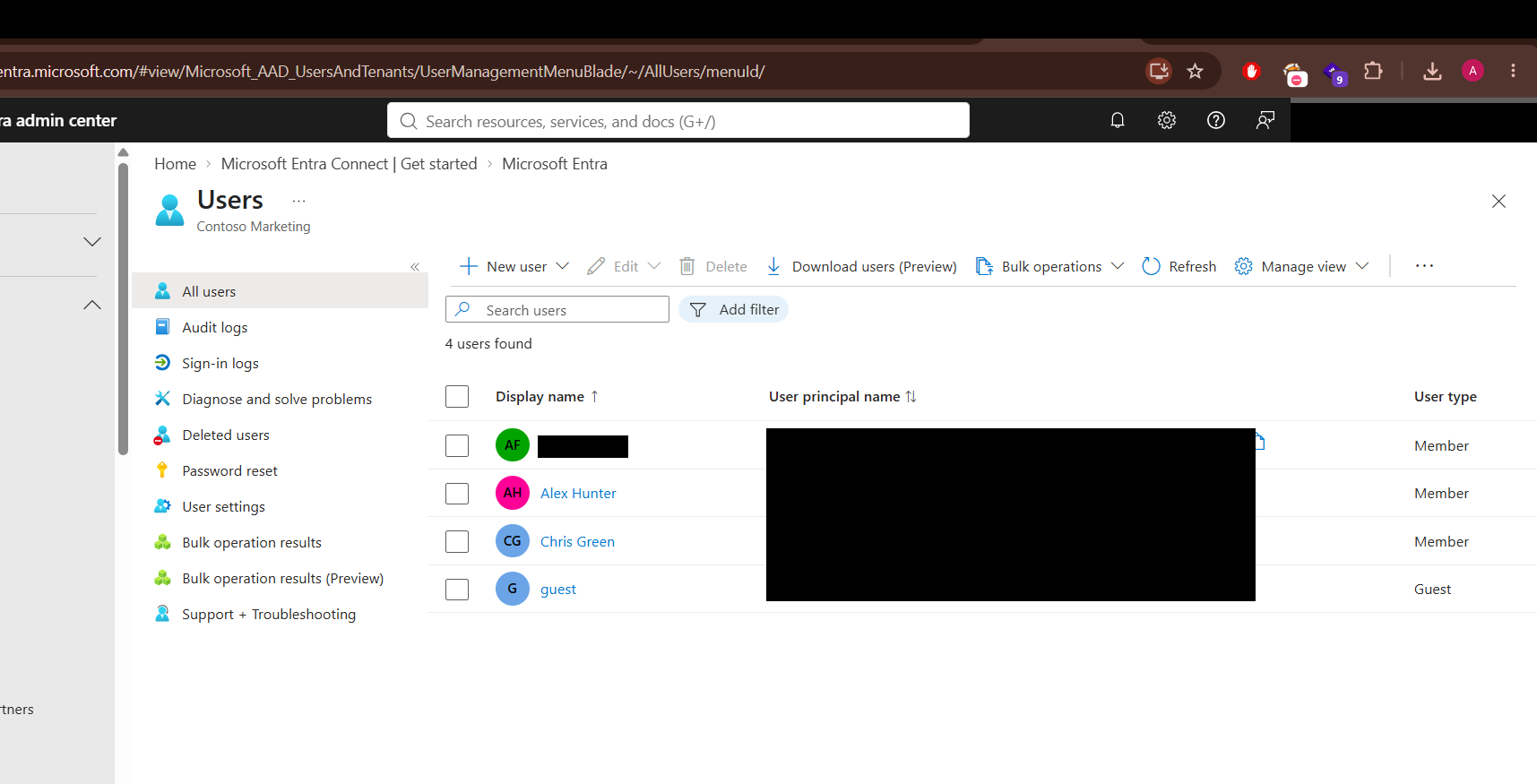 Users list before the change: 4 cloud users, no Sync Admin yet (names and UPNs redacted).
[!warning] Handle with care Global Administrator is the most powerful role in the tenant. Use this account only for setup and remove the role or delete the account when the lab is finished.
5. Run the installer wizard
Do this on the Windows Server VM. Run AzureADConnect.msi and agree to the license terms on the Welcome page.
5.1 Choose Customize, not Express
The wizard warns that aden.local is not a routable domain and recommends custom settings. Click Customize.
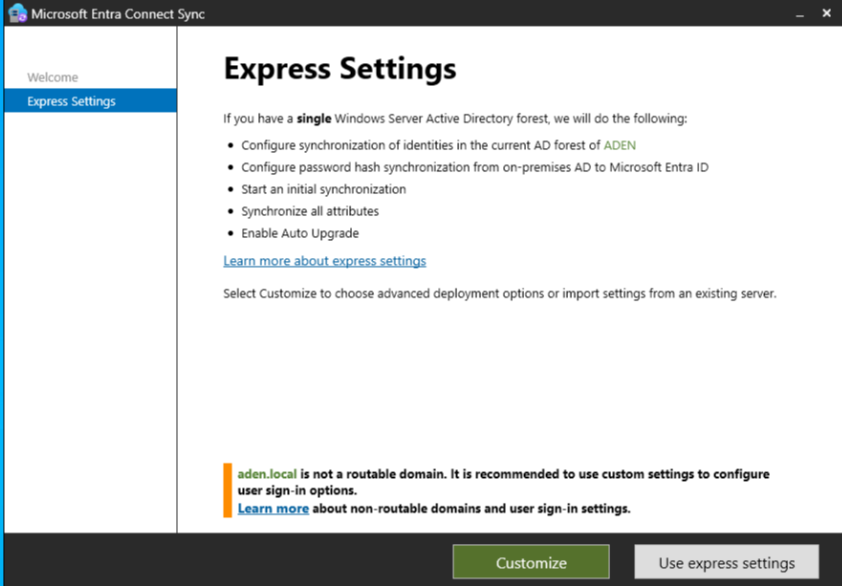 Express Settings page. The warning recommends custom settings for a non-routable domain.
5.2 Install required components
Leave the optional checkboxes empty (custom location, existing SQL Server, existing service account, custom sync groups, import settings) and click Install. This installs the Entra Connect Sync service, including a local SQL Express database and the sync engine.
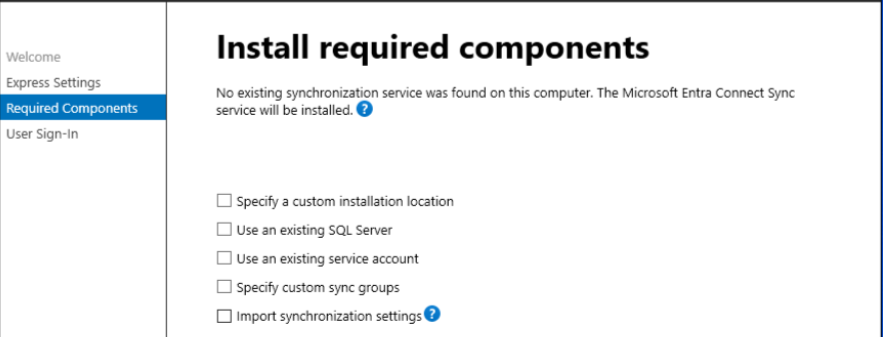 Install required components. No existing synchronization service was found, so it will be installed.
5.3 User sign-in
On the User Sign-In page select Password Hash Synchronization. The summary in 5.8 confirms that password hash synchronization was enabled.
5.4 Connect to Microsoft Entra
Sign in with the cloud-only Global Administrator from section 4. Windows then asks “Sign in to all apps and websites on this device?”. Click No, this app only.
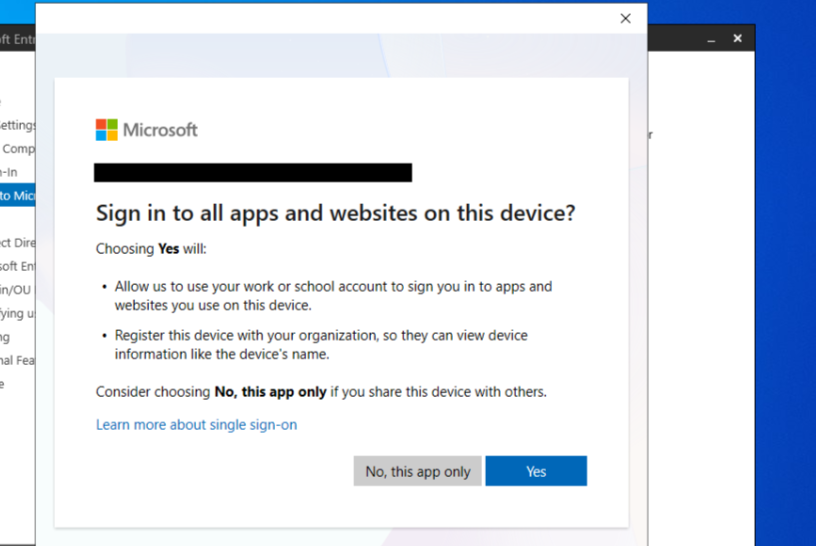 Choose No, this app only. Yes would register the whole server with the admin account (account name redacted).
[!warning] If you see “Something went wrong” (AADSTS70008) An idle sign-in window expires. Click Continue, sign in again, and choose No, this app only straight away. See section 7.
5.5 Connect your directories
Why: The sync engine needs an account in AD to read the directory.
- Directory type Active Directory, forest
aden.local, then Add Directory. - Select Create new AD account.
- Enter the domain administrator (
ADEN\Administrator) and its password. The wizard uses it to create a dedicated account for the AD connector. - Click OK, then Next.
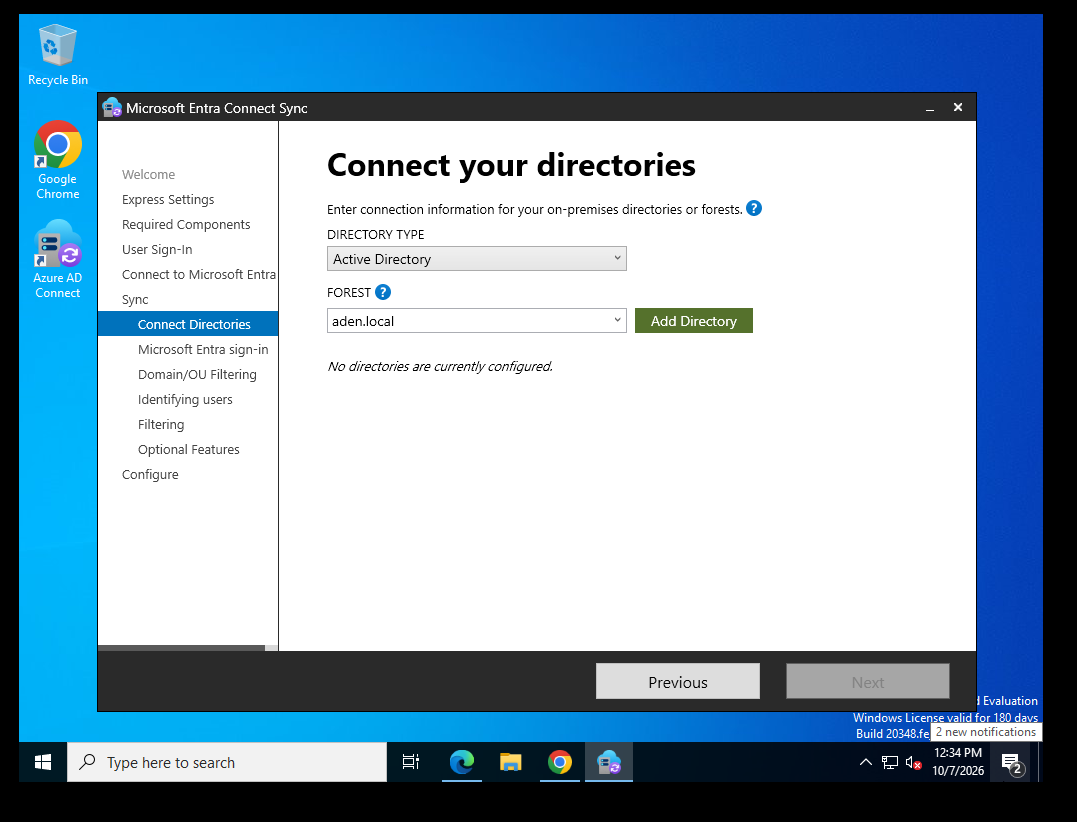 Connect your directories. “No directories are currently configured” until Add Directory is completed.
5.6 Handle the UPN suffix warning
Problem: The page lists the UPN suffix aden.local with the Entra domain status Not Added, and Next is disabled. A .local suffix cannot be verified in Entra ID.
Fix: At the bottom tick Continue without matching all UPN suffixes to verified domains. Next is now available.
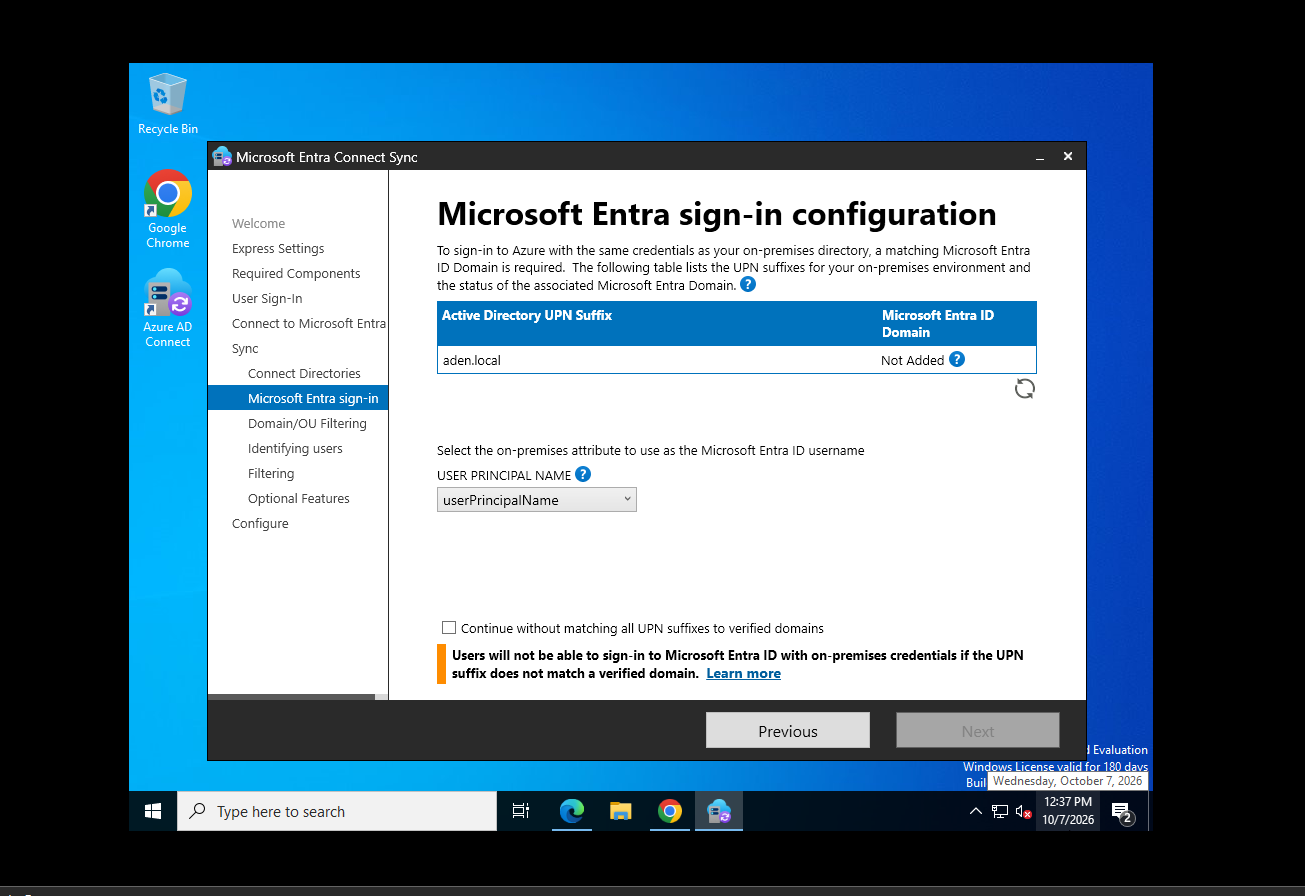 Entra sign-in configuration. The checkbox at the bottom enables Next.
[!warning] What this means The wizard warns that users cannot sign in to Entra ID with their on-premises credentials if the suffix does not match a verified domain. After the sync, check the user principal name each synced user received. In my tenant the synced user’s UPN ended with the tenant’s
onmicrosoft.comdomain, notaden.local. A real custom domain, verified in Entra and added as a UPN suffix in AD, is the long-term fix. See Microsoft’s article Prepare a nonroutable domain for directory synchronization.
5.7 Remaining pages
Continue through Domain/OU Filtering, Identifying users, Filtering and Optional Features. Defaults are fine for this lab.
5.8 Ready to configure
When you click Install, the wizard will:
- Configure the synchronization services on this computer
- Configure the source anchor attribute
- Configure the Entra ID connector (AAD Connector) for the tenant
- Configure the
aden.localconnector - Enable password hash synchronization
- Enable the Entra ID export deletion threshold (500)
Keep Start the synchronization process when configuration completes ticked. Leave Enable staging mode unticked (in staging mode nothing is exported). Click Install.
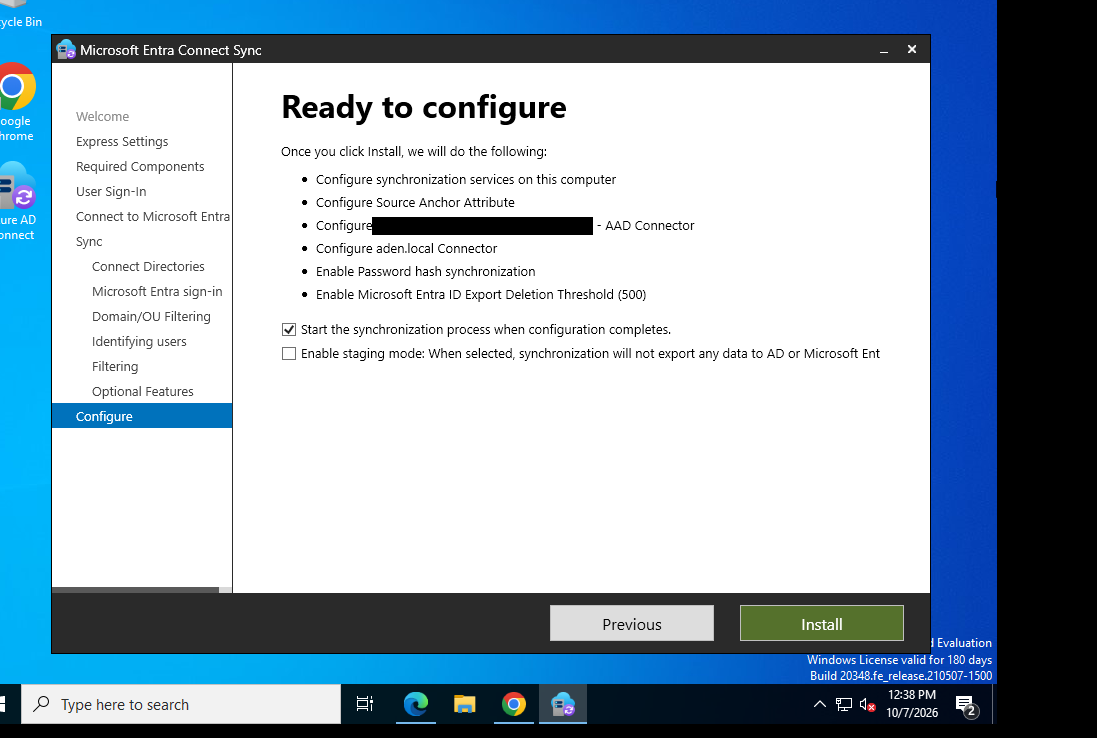 Ready to configure (tenant name redacted). Start synchronization is ticked; staging mode is not.
5.9 Finish
The wizard reports that configuration succeeded and the synchronization process has been initiated. Click Exit.
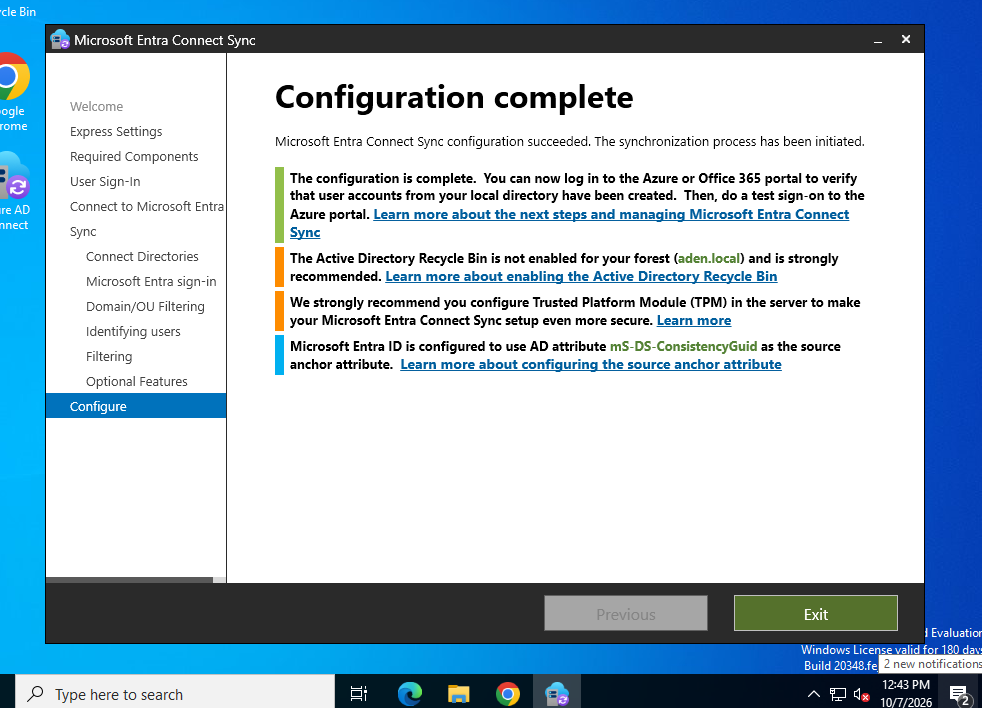 Configuration complete. The source anchor attribute is
 mS-DS-ConsistencyGuid.
[!note] Warnings you can ignore in this lab
- AD Recycle Bin is not enabled for the forest. Recommended in production so deleted objects can be restored.
- Configure TPM on the server for extra protection. Recommended in production.
6. Verify the sync
The first synchronization takes about 2 to 5 minutes after the wizard finishes.
- In the Entra admin center go to Users > All users and click Refresh.
- Find the users from
aden.local. In the On-premises sync enabled column, synced users show Yes and cloud-only users show No. - Open Entra Connect > Connect Sync. It should no longer say “Not installed” or “Sync has never run”, and Password Hash Sync should be Enabled.
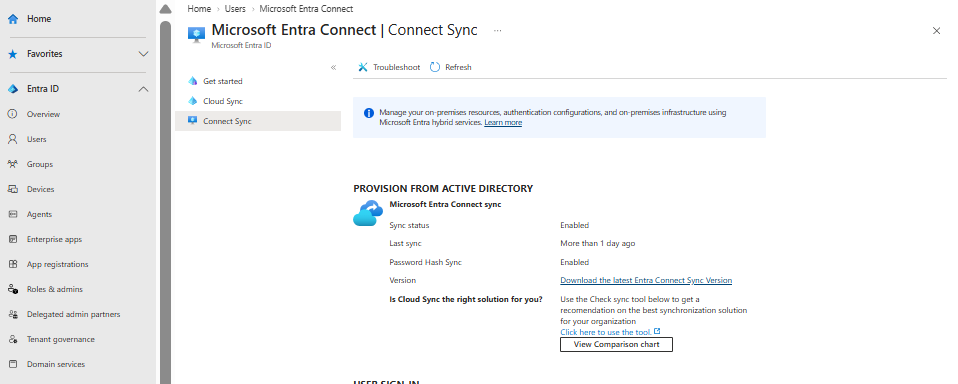 Connect Sync page after setup: Sync status Enabled, Password Hash Sync Enabled. “Last sync: More than 1 day ago” appears when the sync server has not synced recently, for example when the VM was switched off. While the server is on, the scheduler normally runs about every 30 minutes.
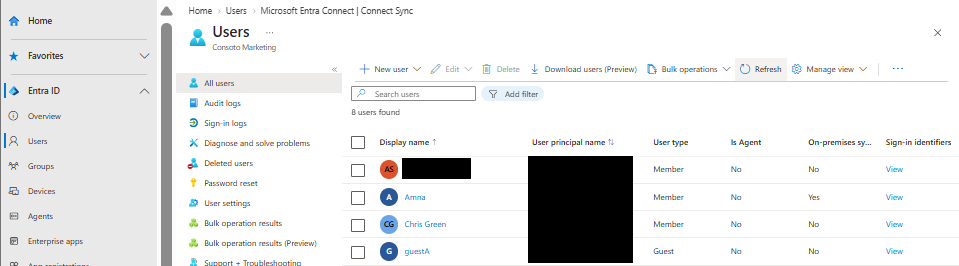 Users list: Amna has On-premises sync enabled = Yes. The other users are cloud-only (names and UPNs redacted).
Force a sync if users do not appear. On the Windows Server VM run PowerShell:
Start-ADSyncSyncCycle -PolicyType Initial
Initial runs a full cycle. For later changes -PolicyType Delta (changes only) is enough. Check the scheduler with:
Get-ADSyncScheduler
| Check | Before | After |
|---|---|---|
| Connect Sync status | Not installed | Enabled |
| Password Hash Sync | Disabled | Enabled |
| Synced users | None | aden.local users with On-premises sync enabled = Yes |
[!tip] Extra check Sign in as a synced user (with the UPN shown in Entra and the on-premises password) in a private window. Success proves password hash sync works.
7. Troubleshooting
| # | Symptom | Cause | Fix |
|---|---|---|---|
| 1 | Old download link gives DecommissionDownloadCentre.pdf | The old Download Center page is retired | Download from Entra Connect > Get started > Manage |
| 2 | No direct download link on Get started | The link is under the Manage tab | Use Manage (or Connect Sync in the left menu) |
| 3 | Cloud Sync page opened by mistake | Different, lightweight product | Go back and select Connect Sync |
| 4 | Express Settings not suitable | aden.local is non-routable | Click Customize |
| 5 | Personal Gmail account not accepted | The wizard needs a cloud-only Global Administrator | Create syncadmin with Global Administrator (section 4) |
| 6 | “Sign in to all apps and websites on this device?” | Device registration prompt | Click No, this app only |
| 7 | “Something went wrong” (AADSTS70008) | The sign-in window sat idle and the code expired | Continue, sign in again, No, this app only |
| 8 | Next disabled on sign-in configuration | UPN suffix is not a verified domain | Tick Continue without matching all UPN suffixes to verified domains |
| 9 | Users not visible right after setup | First sync takes 2 to 5 minutes | Refresh, or run Start-ADSyncSyncCycle -PolicyType Initial |
| 10 | Last sync “More than 1 day ago” | Server off or the sync service stopped | Start the VM, check the ADSync service is running, run a Delta cycle |
| 11 | Recycle Bin and TPM warnings | Production recommendations | Safe to ignore in the lab |
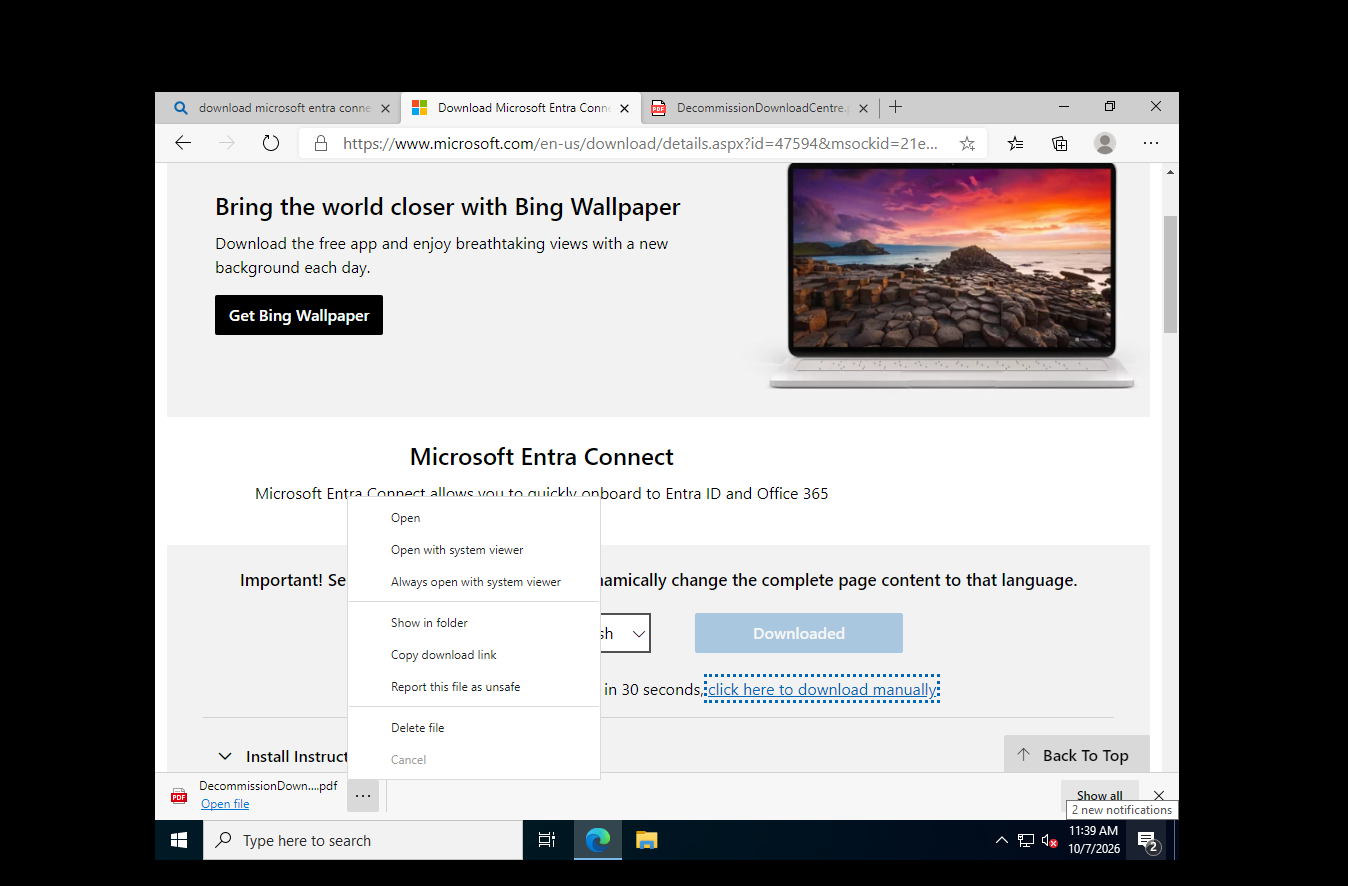 Problem 1: the old Download Center link downloaded a PDF named DecommissionDownloadCentre.pdf.
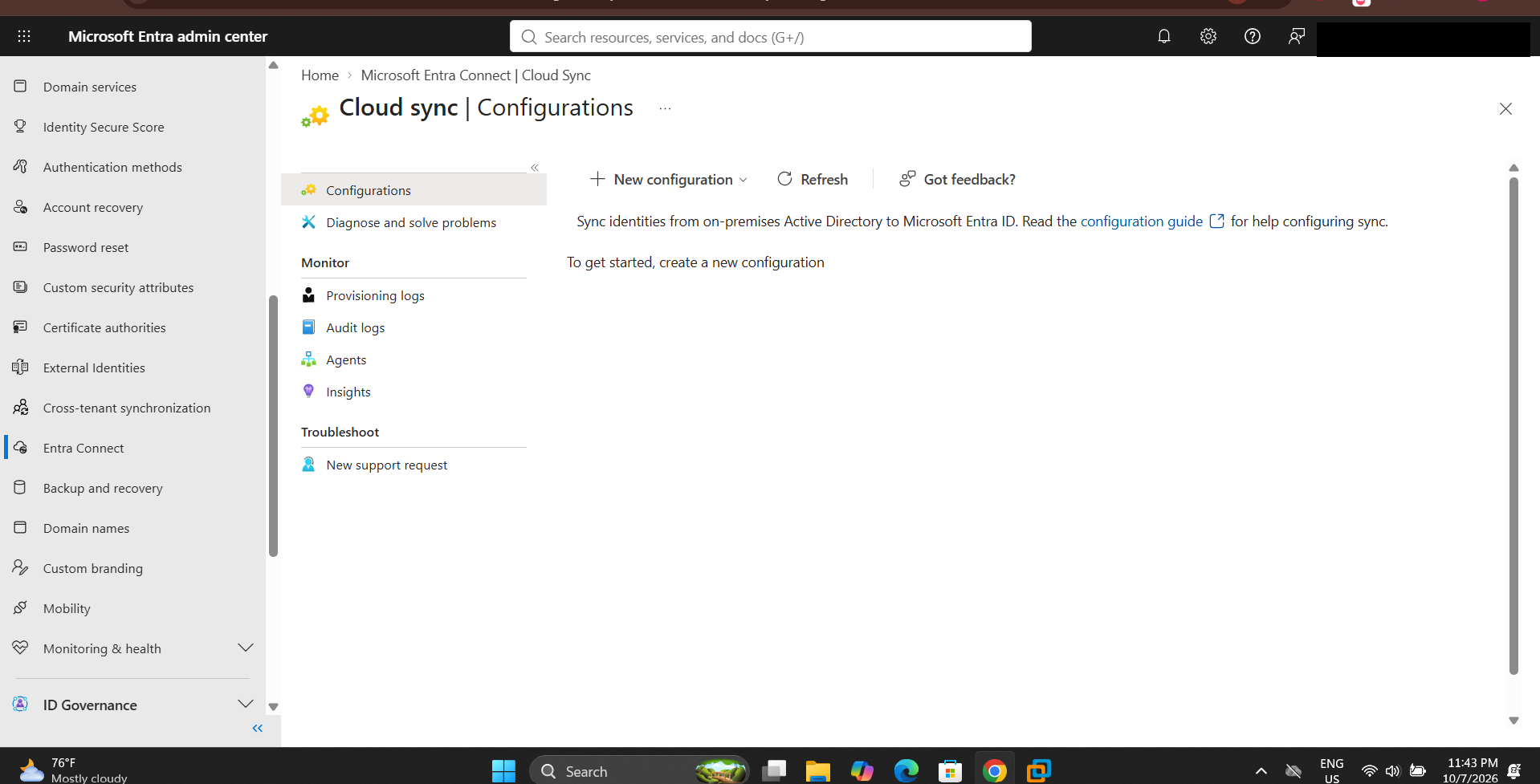 Problem 3: Cloud Sync Configurations page. Not the product used in this lab.
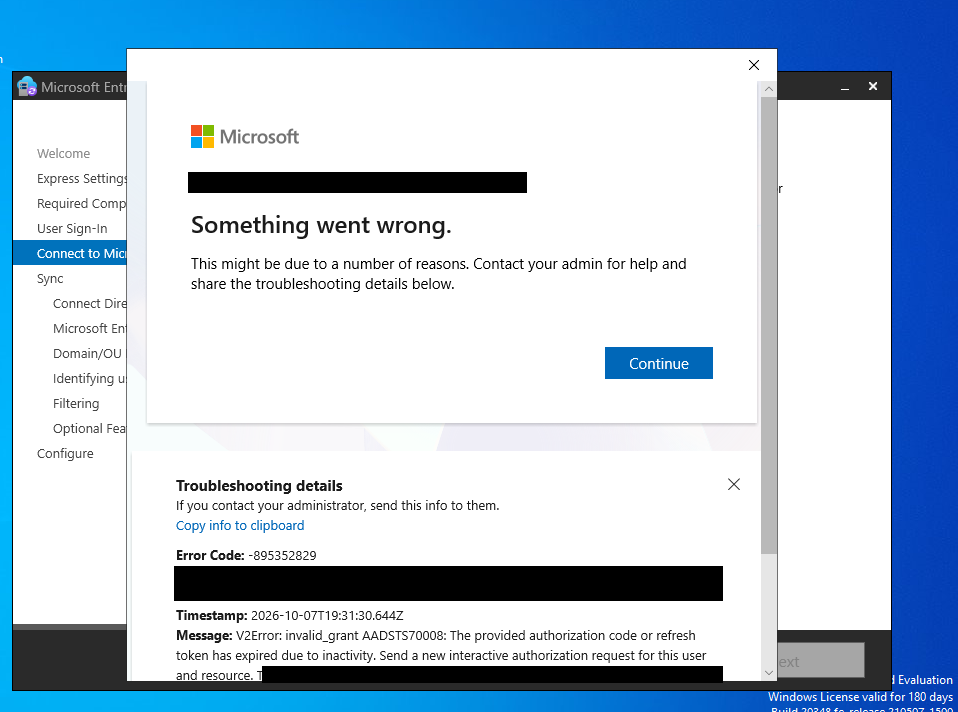 Problem 7: “The provided authorization code or refresh token has expired due to inactivity…” (account name and IDs redacted).
[!note] Cause, fix, retest example AADSTS70008. Cause: idle sign-in window. Fix: Continue, sign in again, No, this app only. Retest: the wizard continued to Connect your directories (5.5).
8. Key concepts
- Hybrid identity: the same identities in on-premises AD and in Entra ID.
- Entra Connect Sync vs Cloud Sync: full server application with local SQL Express, versus a lightweight portal-managed agent.
- Cloud-only account: exists only in Entra ID. The wizard needs one with Global Administrator.
- Non-routable domain: a name like
aden.localthat cannot be verified on the internet. - UPN and UPN suffix: the sign-in name
user@suffix. Entra expects the suffix to match a verified domain. - Password hash synchronization (PHS): a derived hash of the password hash is synchronized so users sign in to the cloud with the same password. The plain-text password is not sent.
- Source anchor: the AD attribute that ties an object to its cloud copy. Here
mS-DS-ConsistencyGuid. - Connector: link between the sync engine and a directory. This lab has an
aden.localconnector and an Entra ID (AAD) connector. - Staging mode: the server processes data but does not export anything. Off in this lab.
- Export deletion threshold (500): stops an export that would delete too many objects.
- Initial vs Delta cycle: full sync versus changes only.
- Device registration prompt: Yes registers the whole device, No, this app only limits the sign-in to the wizard.
- AADSTS70008: the code or token expired due to inactivity. Sign in again.
- Source of truth: for synced users the on-premises AD is the master copy.
9. Viva questions
What does Entra Connect Sync do? It reads users from the on-premises AD and creates and updates matching objects in Entra ID. With password hash sync, users can use the same password in the cloud.
Connect Sync or Cloud Sync? Connect Sync is a full application on a server (sync engine plus local SQL Express). Cloud Sync is a lightweight agent. I used Connect Sync.
Why Customize instead of Express? aden.local is non-routable, so the wizard recommended custom settings for user sign-in.
Why a separate cloud-only Global Administrator? The wizard did not accept my personal Gmail account. It needs a cloud-only account with the Global Administrator role.
What does “No, this app only” do? It limits the sign-in to the wizard. Yes would register the whole server with the admin account.
What is AADSTS70008? The authorization code or refresh token expired because the sign-in window sat idle. Continue, sign in again, choose “No, this app only”.
Why was Next disabled, and what is the consequence? aden.local is not a verified domain. I ticked “Continue without matching all UPN suffixes to verified domains”. Users cannot sign in to Entra with their on-premises UPN, and the proper fix is a verified custom domain.
What is the source anchor? The AD attribute that uniquely identifies an object and links it to its cloud copy: mS-DS-ConsistencyGuid.
What does staging mode do? The server imports and calculates changes but does not export to AD or Entra ID.
How do you force a sync? Start-ADSyncSyncCycle -PolicyType Initial (full) or Delta (changes only).
Why are the Recycle Bin and TPM warnings acceptable here? They are production hardening recommendations and the lab forest is disposable.
Which system is the source of truth for synced users? The on-premises AD.
10. After the lab (suggested)
- Remove the Global Administrator role from
syncadmin, or delete the account. - Keep the VM and sync running only while you still need the lab. A stopped sync server makes “Last sync” age.