Lab 2: Entra App Registration and Employee Portal
Table of Contents
Lab 2: Entra App Registration and Employee Portal (Sable Entra Free Student Lab)
[!abstract] Summary Goal: Build an employee portal on a Windows laptop (Node.js, localhost), connect it to an existing Microsoft Entra ID Free tenant, sign in as an employee, and read the profile through Microsoft Graph. Time: about 60 to 90 minutes for a first attempt. Finish the core lab before the optional access-control exercise.
1. Overview
- The browser opens a local Node.js app (
http://localhost:3000). - The app redirects the browser to Microsoft Entra to authenticate.
- After sign-in, Entra sends an authorization code to the app’s registered redirect URI.
- The app exchanges the code for tokens and creates a session.
- The app calls Microsoft Graph to read the signed-in employee’s profile.
sequenceDiagram
    participant B as Browser
    participant A as Node.js app (localhost:3000)
    participant E as Microsoft Entra
    participant G as Microsoft Graph
    B->>A: Open site, click Sign in
    A->>B: Redirect to Entra
    B->>E: Employee authenticates
    E->>B: Redirect to /auth/redirect with authorization code
    B->>A: Deliver code
    A->>E: Exchange code (+ client secret) for tokens
    E->>A: ID token + access token
    A->>B: Create local session, greet employee
    A->>G: Call with access token (User.Read)
    G->>A: Employee profile
| Runs on your laptop | Runs in Microsoft Entra |
|---|---|
Node.js app, session, .env.dev | Authentication, MFA, consent |
| Terminal that keeps the server alive | App registration, enterprise application (service principal) |
| Browser | Token issuing |
[!note] Local only Localhost means this computer. Nobody else can reach your copy by opening localhost on their PC.
2. Prerequisites
- A Windows laptop, internet access, a browser, and permission to install Node.js.
- An existing Entra workforce lab tenant and permission to register and manage your application.
- An ordinary test employee account (ask the instructor to create it if you cannot create users).
- A text editor such as Notepad or Visual Studio Code.
This setup uses Entra ID Free and local hosting. It does not deploy Azure resources or require a Microsoft 365 mailbox.
[!tip] Shared tenant? Add your name to the application display name, for example
Sable Employee Portal Ayesha. Do not change another student’s objects.
[!danger] Never publish secrets Do not include passwords, client secrets, session secrets or complete tokens in your submission, notes or screenshots.
3. Step 1: Install Node.js
Why: Node.js runs the app on your laptop. npm installs the libraries the sample needs.
- Install the Windows LTS release from https://nodejs.org/en/download with the default options. Reopen PowerShell afterwards.
- Check both commands return a version number:
node --version
npm.cmd --version
 Node.js and npm respond in PowerShell.
[!note]
npm.cmdavoids the PowerShell execution-policy issue that can affectnpm.ps1.
4. Step 2: Download the sample
Why: Microsoft supplies the application code so you can focus on identity configuration.
- Open https://github.com/Azure-Samples/ms-identity-node, select Code > Download ZIP, and extract it into a
SableLabsfolder in Documents.
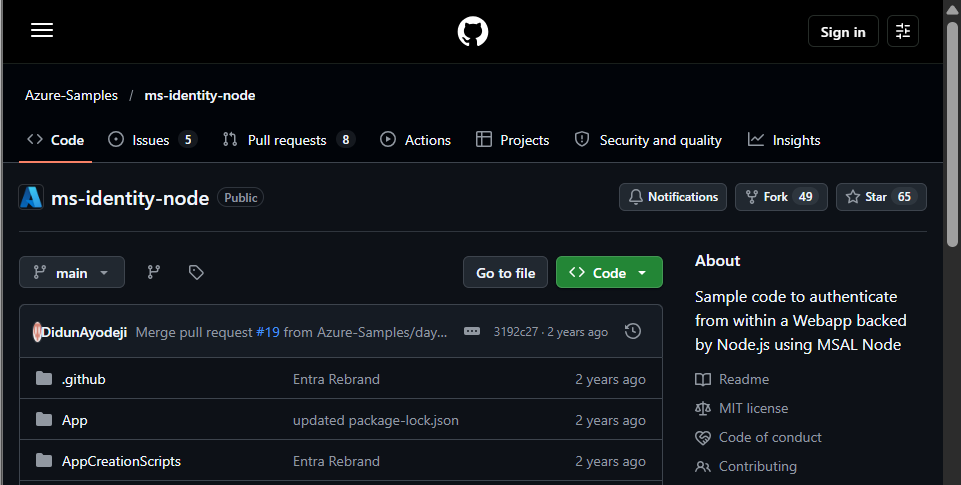 The
The ms-identity-node sample repository.
- Open the extracted folder, then
App. Confirmapp.js,authConfig.js,package.jsonand.env.devare present. Enable File Explorer file-name extensions if needed.
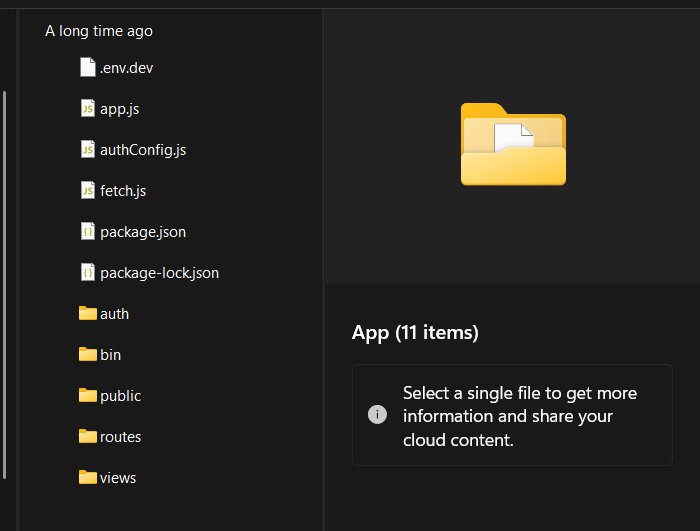 The
The App folder with .env.dev, app.js, authConfig.js, package.json.
[!success] Checkpoint The
Appfolder is available and Node.js responds in PowerShell.
5. Step 3: Register the application
Why: Registration gives the app an identity and tells Entra which tenant can sign in.
- Sign in to https://entra.microsoft.com with your authorized lab account. Check the tenant name.
- Go to Entra ID > App registrations > New registration.
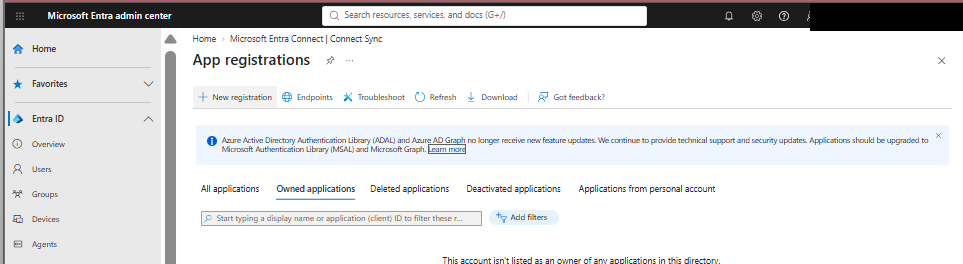 App registrations page. “New registration” is at the top.
- Name the app
Sable Employee Portal(add your name if the tenant is shared). - Choose Accounts in this organizational directory only (Single tenant) and select Register.
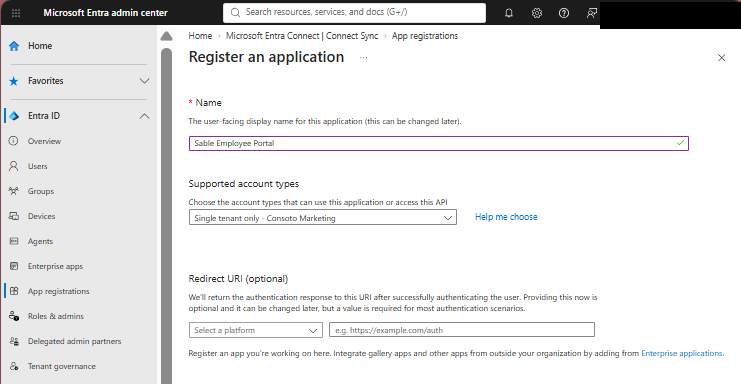 Register an application: name
 Sable Employee Portal, supported account type single tenant.
- On Overview, copy Application (client) ID and Directory (tenant) ID to a local note.
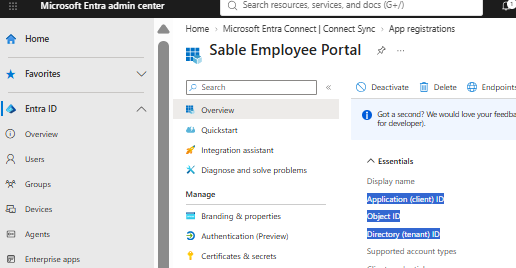 Overview page. Copy Application (client) ID and Directory (tenant) ID (values not shown here). Do not copy Object ID instead of the client ID.
[!info] Understand The client ID identifies your application. The tenant ID identifies the directory it trusts.
6. Step 4: Add the redirect URI
Why: Entra checks this address before sending the browser back to your app after sign-in.
- In the app registration open Authentication and choose Add a platform > Web (or Add Redirect URI).
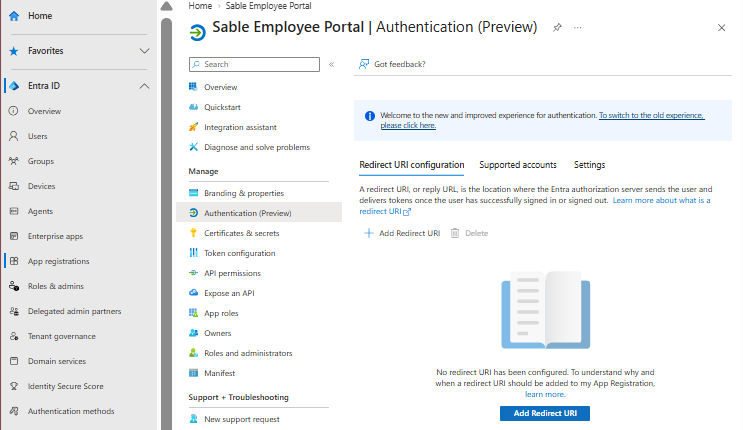 Authentication page before any redirect URI exists.
- Enter exactly this, then Configure or Save:
http://localhost:3000/auth/redirect
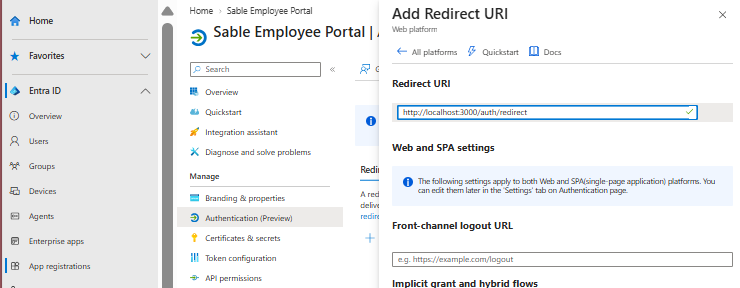 Add Redirect URI panel with
 http://localhost:3000/auth/redirect.
| Part | Value |
|---|---|
| Scheme | http |
| Port | 3000 |
| Path | /auth/redirect |
[!warning] Choose Web, not Single-page application. Leave implicit-grant and public-client settings at their defaults.
7. Step 5: Create a temporary client secret
Why: The server uses this application credential when exchanging the authorization code for tokens. It is separate from an employee’s password.
- Open Certificates & secrets > Client secrets > New client secret.
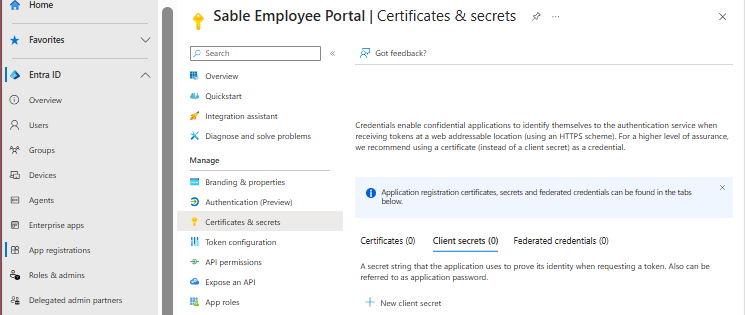 Certificates & secrets, Client secrets tab (0 secrets).
- Description
Sable local lab, a short expiry, then Add.
 Add a client secret: description
 Sable local lab, expiry 90 days.
- Immediately copy the Value to a secure local location. The Secret ID is not the credential, and the Value cannot be retrieved again after you leave the page.
[!danger] Keep the secret out of source control and screenshots, and delete it during cleanup.
8. Step 6: Check Microsoft Graph permissions
Why: Microsoft Graph is an API for Microsoft services. User.Read lets the app read the signed-in user’s basic profile.
- Open API permissions and look for Microsoft Graph > User.Read, Type Delegated.
- If it is missing: Add a permission > Microsoft Graph > Delegated permissions, select
User.Read, add. - If user consent is restricted, ask the instructor or an authorized lab administrator to grant admin consent. Do not add directory-wide read or write permissions.
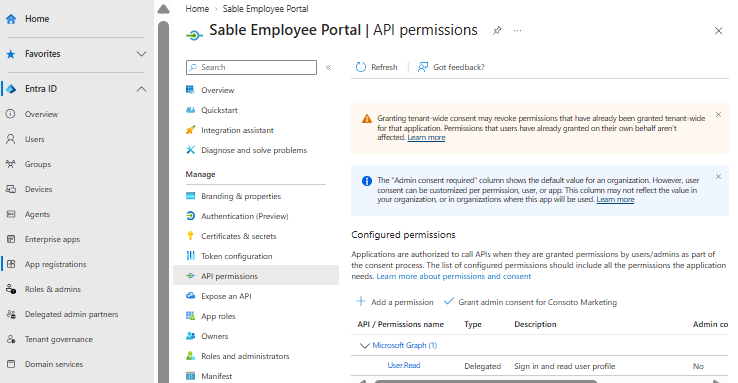 API permissions: Microsoft Graph,
 User.Read, Delegated, “Sign in and read user profile”.
[!success] Checkpoint You have the tenant ID, client ID, secret Value, Web redirect URI and delegated
User.Readpermission.
9. Step 7: Set the local configuration
Why: The config connects this copy of the app to your Entra registration. A separate random session secret protects the app’s session cookie.
- Generate the session secret in PowerShell and copy the output locally:
node -e "console.log(require('crypto').randomBytes(32).toString('hex'))"
 Command that generates a random 32-byte hex string.
- Open
App/.env.devand replace its contents. Replace the fourPASTE_placeholders with your values:
CLOUD_INSTANCE=https://login.microsoftonline.com/
TENANT_ID=PASTE_YOUR_DIRECTORY_TENANT_ID
CLIENT_ID=PASTE_YOUR_APPLICATION_CLIENT_ID
CLIENT_SECRET=PASTE_YOUR_CLIENT_SECRET_VALUE

REDIRECT_URI=http://localhost:3000/auth/redirect
POST_LOGOUT_REDIRECT_URI=http://localhost:3000

GRAPH_API_ENDPOINT=https://graph.microsoft.com/
EXPRESS_SESSION_SECRET=PASTE_YOUR_GENERATED_RANDOM_STRING
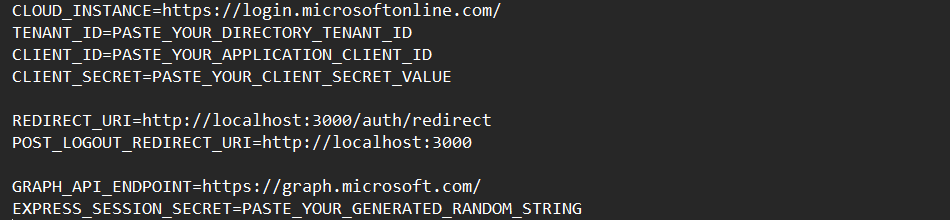 The
The .env.dev template (placeholders shown, never real values).
- Save as
.env.dev, not.env.dev.txt. Keep the trailing slashes onCLOUD_INSTANCEandGRAPH_API_ENDPOINT. Do not create a second.envfile.
[!info] Understand
authConfig.jsloads.env.dev. The session secret and the client secret serve different purposes and must have different values.
10. Step 8: Install dependencies and start the server
- Open the
Appfolder in File Explorer, typepowershellin the address bar and press Enter.
 PowerShell opened in the
 App folder.
- Run each command separately and wait for it to finish (the last one keeps running):
Get-Item .\package.json
npm.cmd install
npm.cmd start

package.json exists in this folder.

npm.cmd install added 110 packages.

npm.cmd start keeps the server running.
- Keep the terminal open. Open http://localhost:3000 in the browser.
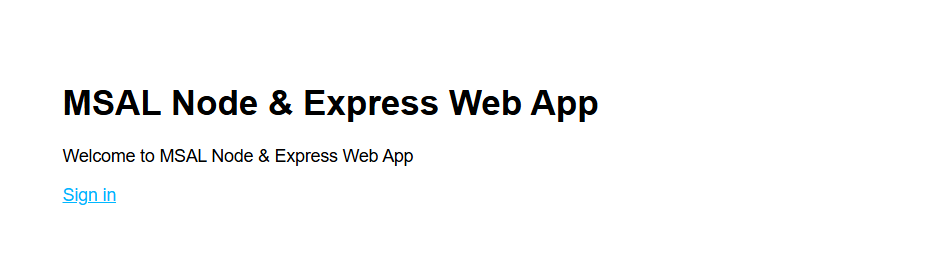 The sample home page loads with a Sign in link.
[!success] Checkpoint The home page loads. It keeps Microsoft’s sample title; the Entra display name does not change the site branding.
11. Step 9: Prepare an ordinary employee account
Why: Testing as an ordinary user shows the employee experience without administrator privileges.
- Reuse an ordinary lab user or ask the instructor. If authorized: Entra ID > Users > New user > Create new user.
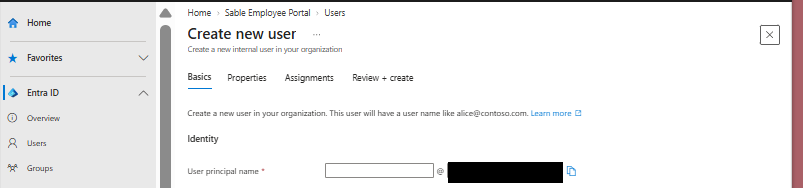 Create new user (the domain part of the UPN is redacted).
- Username
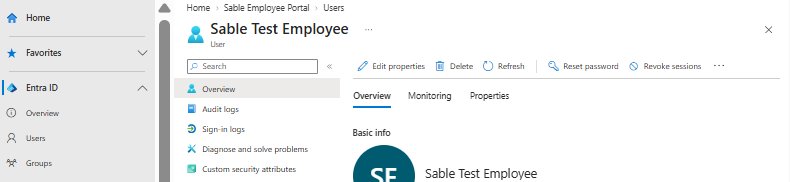
employee1, youronmicrosoft.comdomain, display nameSable Test Employee. Add a unique suffix if the tenant is shared.
 The
The Sable Test Employee user.
- Keep the account enabled, record the temporary password securely, and create it without administrator roles. No mailbox license is needed.
12. Step 10: Sign in as the employee
- Open a new InPrivate / Incognito window, go to
http://localhost:3000and click Sign in.
 A private window so no administrator session is reused.
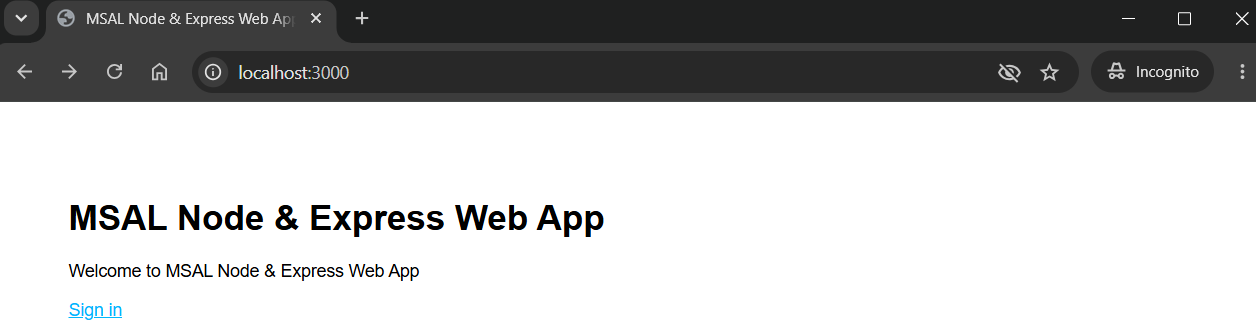 The app in the private window.
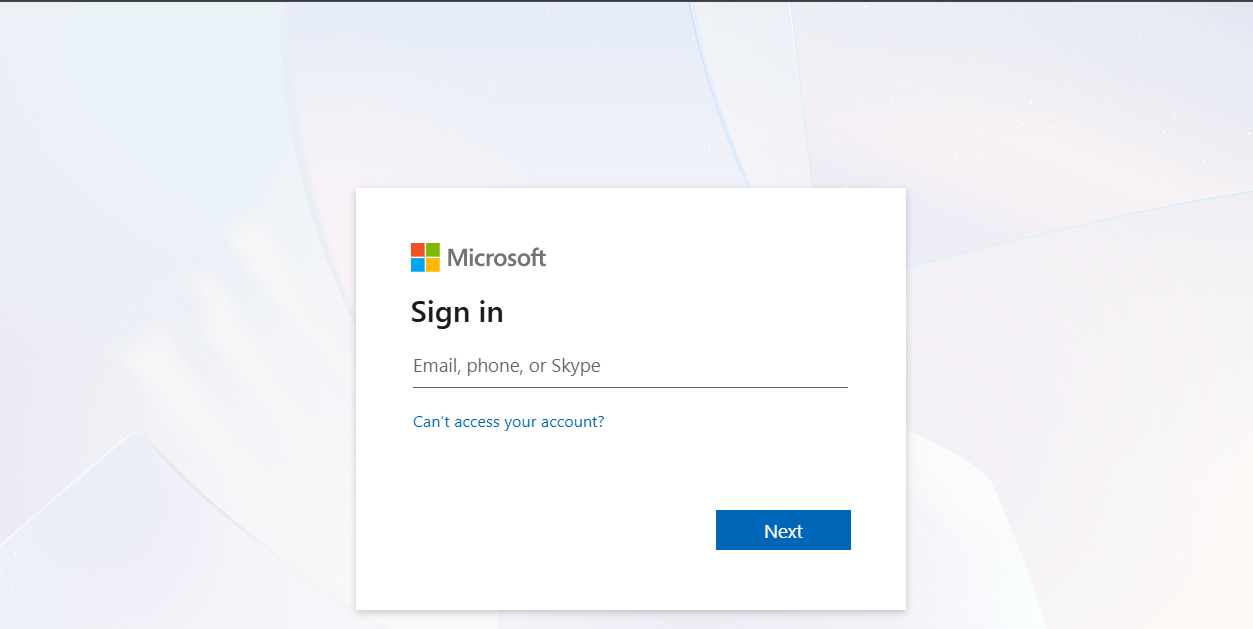 Microsoft sign-in page.
- Enter the employee’s full sign-in name, such as
employee1@yourtenant.onmicrosoft.com, and its password. - Complete any required password change or MFA registration. Keep the tenant’s security controls enabled.
- Review the requested permissions and accept if user consent is allowed. Otherwise ask the instructor to grant consent.
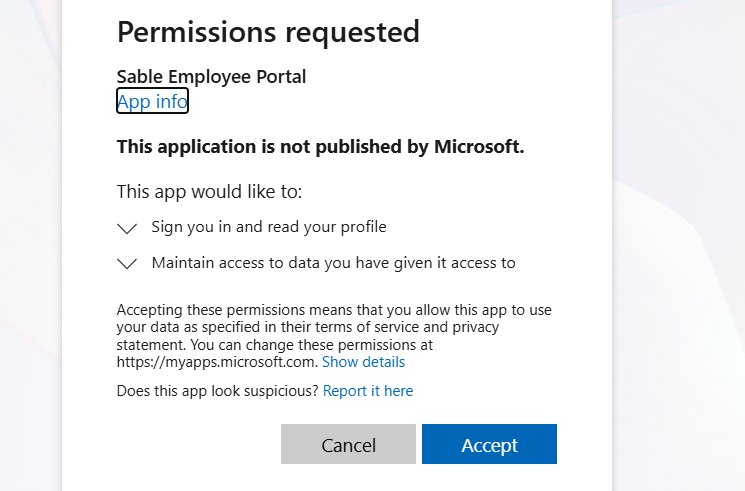 Consent prompt: “Sign you in and read your profile” and “Maintain access to data you have given it access to”.
- Confirm the browser returns to localhost and greets the employee. Click View ID token claims.
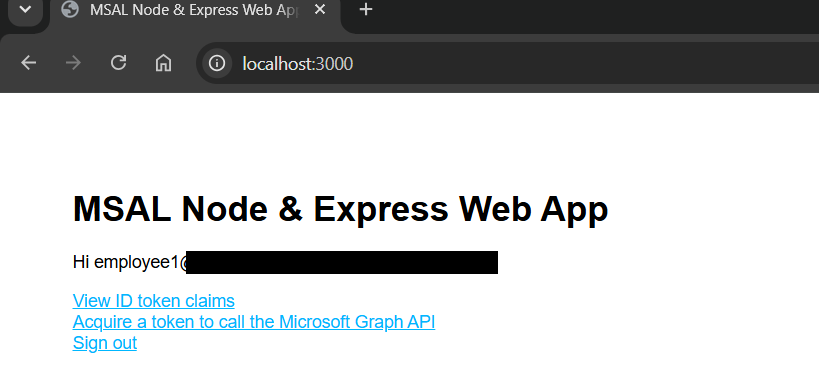 The app greets the employee (tenant part of the name redacted).
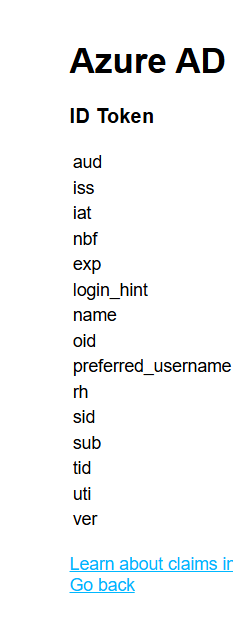 ID token claims:
 aud, iss, iat, nbf, exp, login_hint, name, oid, preferred_username, rh, sid, sub, tid, uti, ver.
- Click Acquire a token to call the Microsoft Graph API and confirm the profile appears. Sign out when finished.
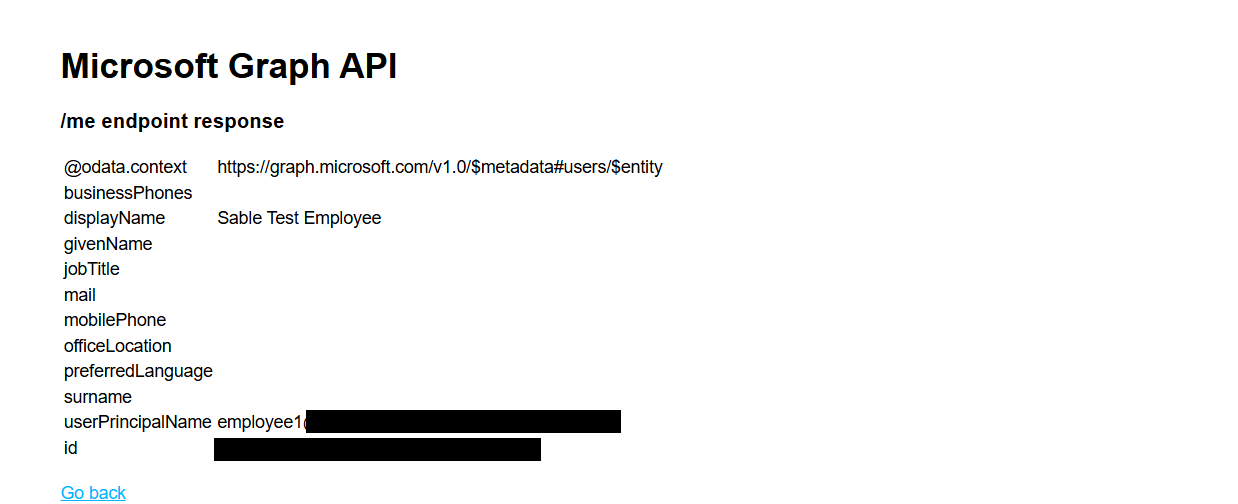 Graph
Graph /me response: display name Sable Test Employee (user principal name and ID redacted).
[!success] Checkpoint Both the sign-in and the profile request work. Capture the home page and a profile result with private information redacted, and no full tokens.
13. What happened
- The browser went to Entra to authenticate the employee.
- Entra returned an authorization code to the registered redirect URI.
- The app exchanged it for tokens and created a local session.
- The ID token describes the authenticated identity. An access token authorizes a request to an API such as Microsoft Graph.
- Your laptop hosts the app. Entra supplies identity services. The app registration describes the app, and its enterprise application (service principal) represents it in the tenant.
14. Troubleshooting
After editing .env.dev, stop the server with Ctrl+C and run npm.cmd start again. Start new sign-in tests in a fresh private browser session.
| Symptom | Cause / fix |
|---|---|
| Node is not recognized | Close and reopen PowerShell after install. Repeat node --version. If it still fails, check the installer’s PATH option. |
| Package file cannot be found | Run npm.cmd install and npm.cmd start inside App, where package.json exists. Check with Get-Location and Get-Item .\package.json. |
| Configuration is missing | .env.dev must be in App, with no .txt added, all four placeholders replaced, and both trailing slashes kept. |
| Redirect URI mismatch / AADSTS50011 | The Web redirect URI in Entra and REDIRECT_URI locally must both be http://localhost:3000/auth/redirect. Save and restart. |
| Invalid client secret | Use the secret Value, not Secret ID. Check expiry. If lost, create a new one, update the file, remove the old one. |
| Application not found / wrong tenant | Copy client ID and tenant ID again from the same registration. Sign in with a user from that tenant. |
| Need admin approval | The instructor reviews permissions and grants consent. Keep the lab limited to delegated User.Read. |
| Connection refused / EADDRINUSE | Confirm the server is running. For EADDRINUSE stop your other copy of the sample. Do not stop unfamiliar processes. |
| Browser uses the administrator account | Close private windows, open a fresh one, choose Use another account, enter the employee’s full sign-in name. |
| Sign-in works but the profile request fails | Check delegated User.Read, consent, and GRAPH_API_ENDPOINT=https://graph.microsoft.com/. Record the error text with secrets removed. |
15. Submission checklist
- Screenshot of the registered Web redirect URI and the app’s account type
- Screenshot of the ordinary employee signed in to the local app
- Evidence that the Graph profile request succeeded (redact personal details)
- Short explanation of tenant ID, client ID, client secret, redirect URI, ID token, access token
- One error encountered or deliberately introduced: cause, fix, evidence of a successful retest
[!danger] Do not submit
.env.dev, passwords, client secrets, session secrets, or complete tokens.
16. Optional extension: restrict access to an assigned user
Complete this after the core lab works. It tests authorization: who may use the app after authenticating.
- Create or request a second ordinary test employee. In Entra ID > Enterprise applications, open
Sable Employee Portal. - Under Properties set Assignment required to Yes and save. In Users and groups add the first employee directly with Default Access. Leave the second unassigned.
- Have an authorized instructor review and grant admin consent (assignment-required apps need admin consent).
- Test each employee in a separate fresh private session. The assigned employee should sign in; the unassigned one should be blocked. Record both results.
[!info] Use individual assignments. Group-based app assignment needs premium licensing. Test ordinary users, not administrators.
17. Cleanup
Capture evidence first.
- Stop the server with
Ctrl+C. - After instructor review, delete the lab client secret and remove its value from the local file.
- If the lab will not be reused, delete only your own app registration, check its enterprise application is gone, and delete your disposable test users.
- Coordinate cleanup in a shared tenant.
18. Key concepts
- Tenant ID: identifies the directory the app trusts.
- Client ID: identifies the application (not the same as Object ID).
- Client secret: the application’s credential used to exchange the code for tokens. Only the Value works.
- Session secret: random string that protects the app’s session cookie. Not related to Entra.
- Redirect URI: where Entra sends the browser after sign-in. It must match exactly.
- ID token vs access token: the ID token proves who authenticated. The access token authorizes a call to an API such as Graph.
- Delegated permission: the app acts on behalf of the signed-in user.
- App registration vs enterprise application: the registration describes the app. The enterprise application (service principal) represents it in the tenant.
- Authentication vs authorization: proving who you are, versus deciding what you may access.
19. Viva questions
Why must the redirect URI match the registered address? Entra checks it before sending the browser back. If any address were accepted, an attacker could receive the authorization code. A mismatch gives AADSTS50011.
Why is the client secret different from the employee password and the session secret? The client secret is the application’s credential for Entra. The employee password is the user’s credential, entered only at Entra. The session secret protects the local session cookie and Entra never sees it.
Authentication versus authorization? Authentication proves who the employee is. Authorization decides whether they may use the app. With Assignment required = Yes, an authenticated but unassigned employee is blocked.
Why does the app need an access token to call Microsoft Graph? The ID token only describes the identity to the app. Graph is a separate API and requires an access token showing the user delegated User.Read to this app.
What runs on my laptop and what runs in Entra? Laptop: Node.js app, session, .env.dev, terminal, browser. Entra: authentication, MFA, consent, registration, enterprise application, token issuing.
What happens when I close the terminal running the server? The Node.js process stops, so http://localhost:3000 refuses connections. Entra and the registration are unaffected. Restart with npm.cmd start.