Lab 3: Microsoft Entra Certificate Authentication with PowerShell and Microsoft Graph
Table of Contents
Lab 3: Microsoft Entra Certificate Authentication with PowerShell and Microsoft Graph
In this lab I built a small PowerShell tool that logs in to Microsoft Entra ID as an application, not as a person. The tool proves its identity with a certificate, reads the users of my lab tenant through Microsoft Graph, and saves them to a CSV file. After that I deleted the certificate from the app, checked that a new login was rejected, restored the certificate, and cleaned everything up.
Tools used: Windows, PowerShell 7, Microsoft Graph PowerShell SDK, Microsoft Entra ID Free tenant.
Note on redaction: The tenant ID, client ID, object ID, user email addresses, and other portal IDs are blacked out in the screenshots and replaced with placeholders such as
<TENANT_ID>in the commands. The certificate thumbprint is left visible because it is only a fingerprint, and the certificate and its private key were deleted at the end of the lab.
Contents
- How the connection works
- Step 1: Install PowerShell 7 and the Graph modules
- Step 2: Create the certificate
- Step 3: Register the application
- Step 4: Add the permission and grant consent
- Step 5: Connect with the certificate
- Step 6: Read the users and export the CSV
- Step 7: Remove the certificate and test a new login
- Step 8: Restore the certificate
- Step 9: Clean up
- Key takeaways
How the connection works
Application identity vs. user sign-in. In a normal sign-in, a person types a password and the app acts on that person’s behalf. In this lab nobody signs in. The script itself is the identity, so there is no browser window, no redirect URI, and no password. The private key of a certificate takes the place of the password.
The main parts. The app registration is the definition of the application: its name, its credentials, and the permissions it asks for. The service principal is the identity of that app inside my tenant, and it is created automatically with the registration. The client ID identifies the app and the tenant ID identifies my directory. Neither of them is a secret.
The certificate. A certificate has two halves. The private key stays on my computer and is used to sign a proof of identity. The public certificate (the .cer file) is uploaded to Entra and can only check a signature. It cannot create one. This is why it is safe to upload the .cer file but never the private key.
The login flow. The script signs a message with the private key. Entra checks that signature against the public certificate registered on the app. If it matches, Entra gives the script an access token. The script sends this token to Microsoft Graph, and Graph checks that the app has the right permission before it returns any users.
Step 1: Install PowerShell 7 and the Graph modules
Purpose. PowerShell 7 is the shell used for the whole lab, and the Graph modules give it the commands to log in (Connect-MgGraph) and to read users (Get-MgUser). I installed only the two modules I needed.
What I did. I opened PowerShell 7 as my normal Windows user and checked the version.
$PSVersionTable.PSVersion
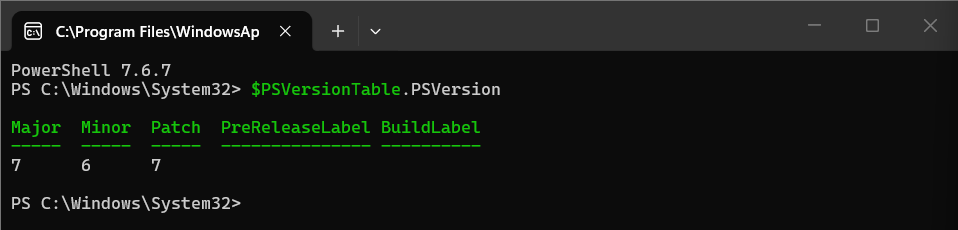 PowerShell 7.6.7 is installed.
Then I installed and imported the two modules.
Install-Module Microsoft.Graph.Authentication -Scope CurrentUser
Install-Module Microsoft.Graph.Users -Scope CurrentUser
Import-Module Microsoft.Graph.Authentication
Import-Module Microsoft.Graph.Users
Get-Command Connect-MgGraph, Get-MgUser
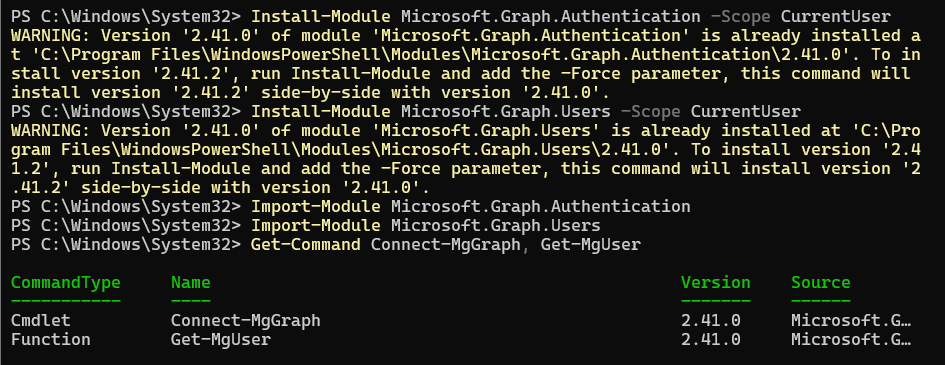 Both modules (version 2.41.0) were already on my computer, so PowerShell only showed a warning. Both commands were found.
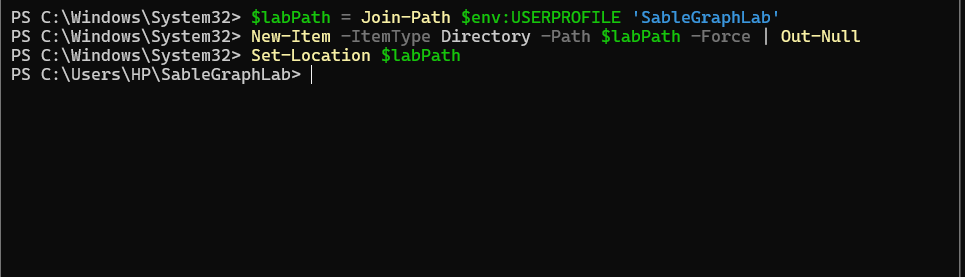
Finally I created a working folder for the lab files.
$labPath = Join-Path $env:USERPROFILE 'SableGraphLab'
New-Item -ItemType Directory -Path $labPath -Force | Out-Null
Set-Location $labPath
Other options. Windows PowerShell 5.1 comes with Windows, but PowerShell 7 is the version Microsoft recommends for the Graph SDK, so I used it. I could also have installed the full Microsoft.Graph module, but it contains dozens of sub-modules and is slow to install. Another way is to skip the SDK and call the Graph REST API with Invoke-RestMethod, but then I would have to request and handle the access token myself.
Step 2: Create the certificate
Purpose. The script needs a credential to prove who it is. I used a self-signed certificate, which means I created it myself. For a lab, this is enough, because Entra only needs to match the public certificate I upload. The private key stays in my Windows certificate store.
What I did. I created the certificate in my personal store, made the key non-exportable, and set it to expire in 30 days. Then I exported only the public part to a .cer file.
$certOptions = @{
    Subject = 'CN=Sable Graph Inventory Lab'
    CertStoreLocation = 'Cert:\CurrentUser\My'
    KeyAlgorithm = 'RSA'
    KeyLength = 2048
    HashAlgorithm = 'SHA256'
    KeySpec = 'Signature'
    KeyExportPolicy = 'NonExportable'
    NotAfter = (Get-Date).AddDays(30)
}
$cert = New-SelfSignedCertificate @certOptions
$thumbprint = $cert.Thumbprint
$cerPath = Join-Path $labPath 'SableGraphInventory.cer'
Export-Certificate -Cert $cert -FilePath $cerPath
$cert | Select-Object Subject, Thumbprint, NotAfter, HasPrivateKey
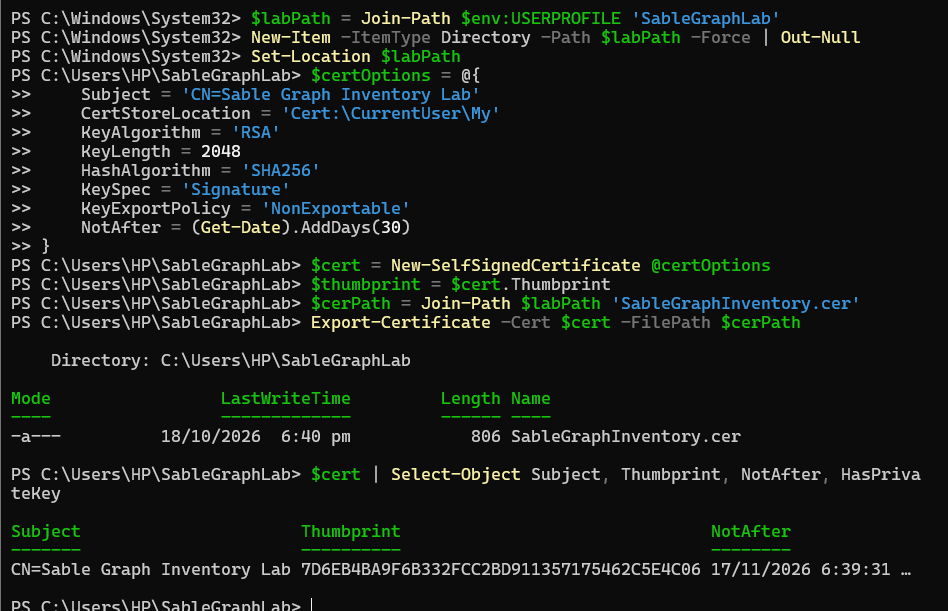 The certificate was created, the thumbprint was saved, and
 SableGraphInventory.cer was exported. The expiry date is 17/11/2026.
Why these settings. RSA with a 2048-bit key and SHA-256 is a common and accepted choice. The 30-day life keeps the lab credential short-lived. NonExportable stops the key from being copied out of the store, but it does not stop programs running as my Windows user from using it.
Other options. A client secret is easier to set up, but it is just a text password that can be copied, pasted into code, or leaked. A certificate is stronger because the private key never leaves the machine. A certificate from a real certificate authority, or one kept in Azure Key Vault or a hardware module, is better for production, but it needs extra cost or an Azure subscription. Federated credentials and managed identities remove stored credentials completely, but they only work when the app runs in a supported place such as GitHub Actions or an Azure service, not on a laptop.
Step 3: Register the application
Purpose. Entra needs an app registration to know the application exists and which certificate belongs to it.
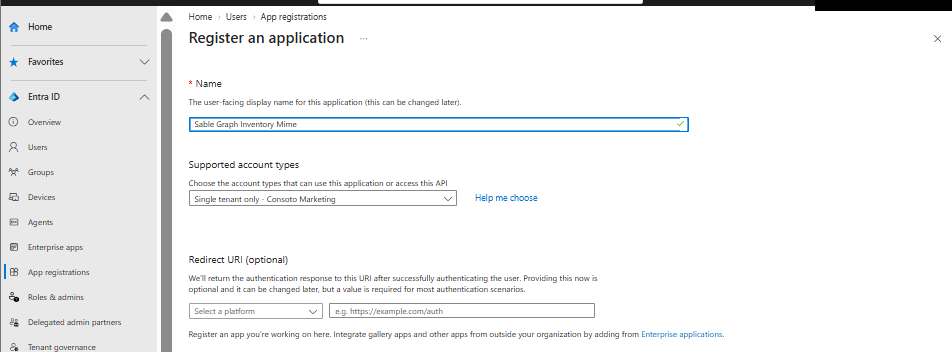
What I did. In the Entra admin center I went to Entra ID > App registrations > New registration. I named the app Sable Graph Inventory with my own suffix, chose Single tenant only, and left the Redirect URI empty, because this app has no browser sign-in.
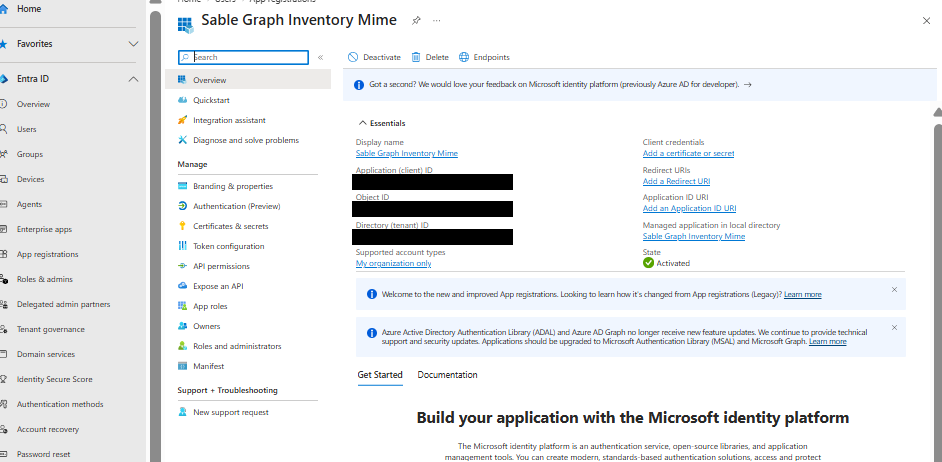
After registering, I copied the Application (client) ID and Directory (tenant) ID from the Overview page. I did not use the Object ID, because it is a different value and would make the login fail.
Next I opened Certificates & secrets > Certificates > Upload certificate and uploaded SableGraphInventory.cer. The thumbprint shown in the portal matched the thumbprint from PowerShell.
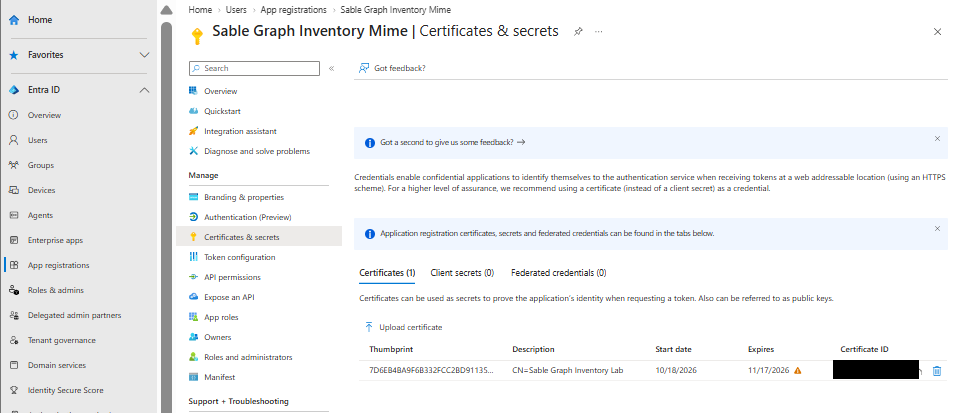 One certificate is registered. There are no client secrets.
Other options. I used the portal because it is the easiest way to see each setting. The same registration can also be created from the command line, for example with New-MgApplication in PowerShell or az ad app create in Azure CLI. A multi-tenant app would let other organizations use it, but it is not needed for a tool that only reads my own directory.
Step 4: Add the permission and grant consent
Purpose. A login alone does not let the app read anything. The app must also have a permission, and for this kind of app an administrator must approve it. Adding the permission only requests it, and admin consent grants it.
What I did. In API permissions I chose Add a permission > Microsoft Graph > Application permissions and selected User.Read.All.
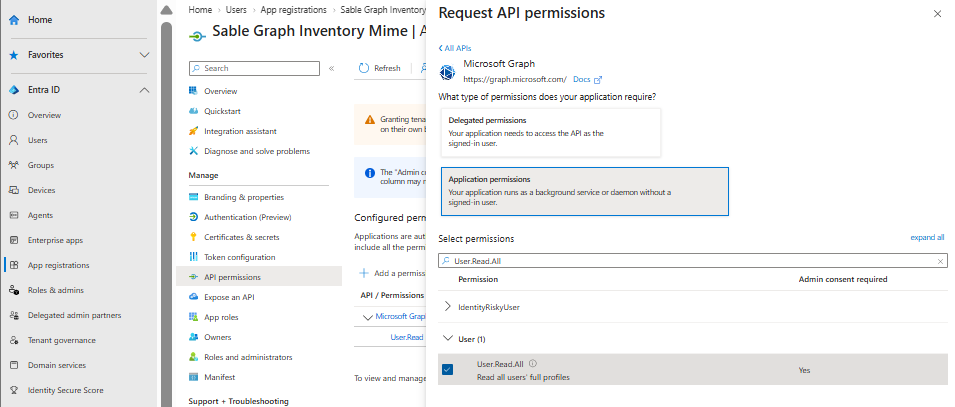 The permission type is Application, not Delegated, because no user is signed in.
The registration also contained the default delegated User.Read permission. I removed it, because the script does not use it. At this point User.Read.All was added but not yet granted.
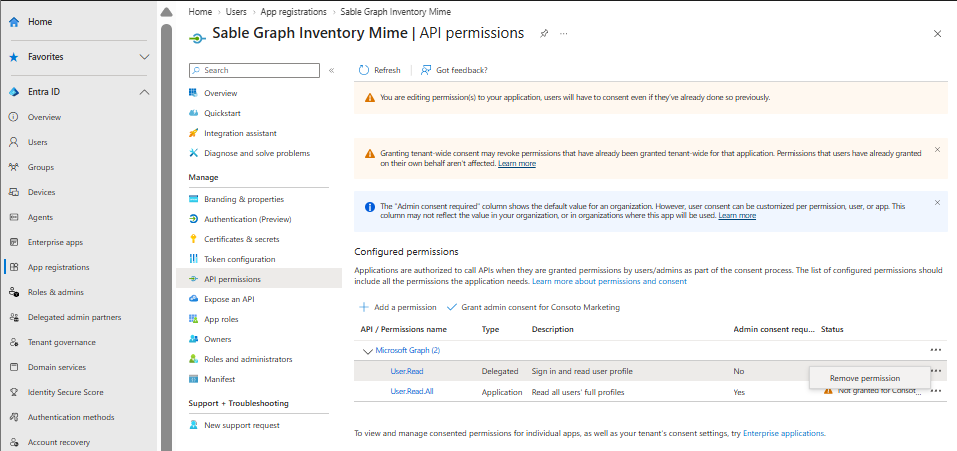 The status warning shows that consent was still missing.
Then I selected Grant admin consent for the tenant. The portal reported success and the status changed to Granted.
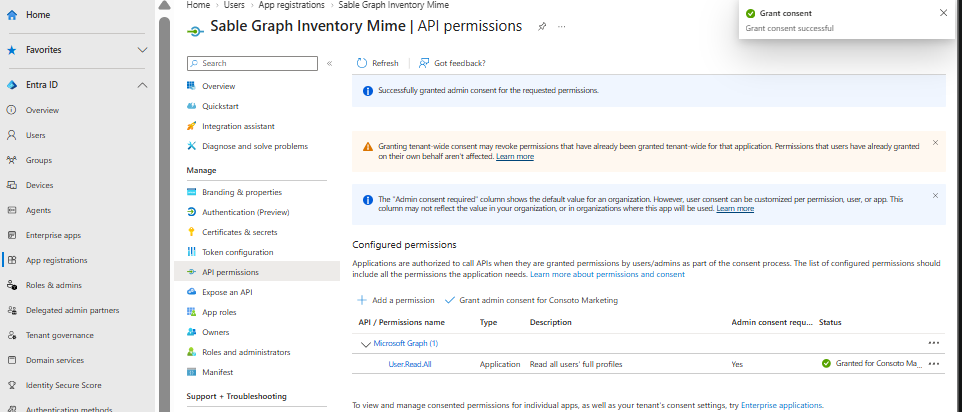
Why User.Read.All. It is the least powerful application permission that can list users. It can read users but cannot change them. I did not add any write permission or admin role.
Other options. A delegated permission needs a signed-in user, so it does not fit an unattended script. A broader permission such as Directory.Read.All would also work, but it gives more access than the task needs. Admin consent can also be given through a special consent URL or the Graph API, but the portal button is the simplest.
Step 5: Connect with the certificate
Purpose. This step proves that the certificate, the app registration, and my IDs all work together.
What I did. I stored the IDs in variables and connected using the certificate thumbprint.
$tenantId = '<TENANT_ID>'
$clientId = '<CLIENT_ID>'
$connection = @{
    TenantId = $tenantId
    ClientId = $clientId
    CertificateThumbprint = $thumbprint
    ContextScope = 'Process'
    NoWelcome = $true
}
Connect-MgGraph @connection
Get-MgContext | Select-Object ClientId, TenantId, AuthType
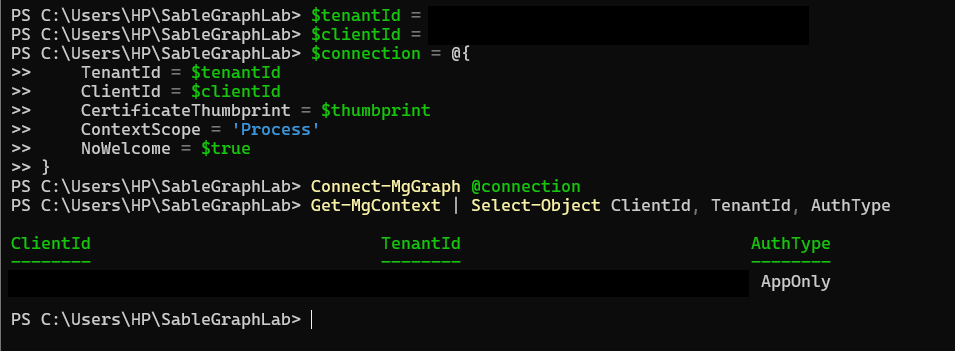
AuthType is AppOnly, and no sign-in window appeared.
ContextScope = 'Process' keeps the connection only inside this PowerShell window, so nothing is saved for later sessions.
Other options. Connect-MgGraph can also take the certificate object with -Certificate, or find it by its subject name with -CertificateName. It can use a client secret with -ClientSecretCredential, or an access token I already have with -AccessToken. With ContextScope set to CurrentUser (the default), the sign-in details are kept for later sessions, which I avoided here.
Step 6: Read the users and export the CSV
Purpose. A successful login does not prove that the permission works. Reading real users from the directory does.
A problem I hit first. My first attempt to read users failed with a 403 error, even though the login worked.
Get-MgUser_List: Insufficient privileges to complete the operation.

Status: 403 (Forbidden)
ErrorCode: Authorization_RequestDenied
The reason was simple: admin consent had not been granted yet (see the status warning in Step 4). The app could log in, but Graph would not give it any data. I granted consent, closed PowerShell, opened a fresh session, and connected again. A fresh session was needed because the old token was issued before consent. This time the context showed the permission in Scopes.
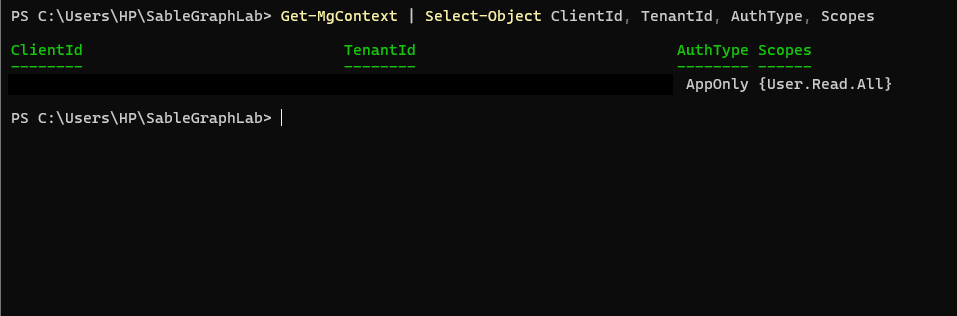
What I did. I asked for the user fields I wanted and collected all pages of results.
$properties = @('Id','DisplayName','UserPrincipalName','UserType','Department')
$users = @(Get-MgUser -All -Property $properties)
$report = @($users |
    Select-Object Id, DisplayName, UserPrincipalName, UserType, Department |
    Sort-Object UserPrincipalName)
$report | Format-Table DisplayName, UserPrincipalName, UserType
'Users retrieved: {0}' -f $report.Count
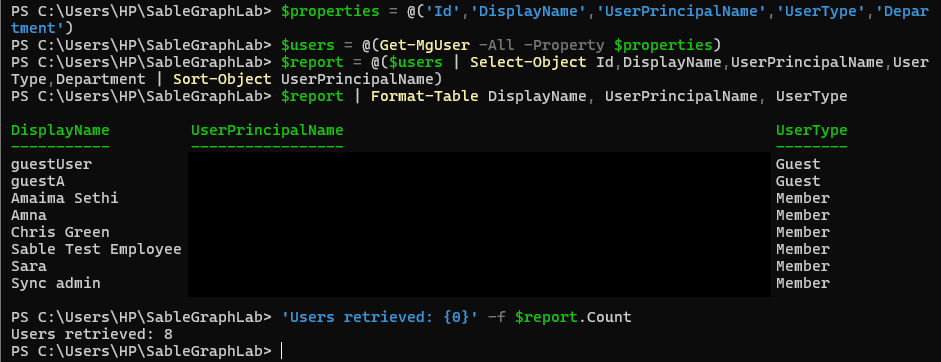 8 users were retrieved. Email addresses are hidden.
-All makes PowerShell follow every page of results, and -Property asks Graph for fields that are not returned by default, such as Department.
Then I exported the list to CSV and read the file back to check it.
$csvPath = Join-Path $labPath 'SableUserInventory.csv'
$report | Export-Csv -Path $csvPath -NoTypeInformation -Encoding utf8
$exported = @(Import-Csv -Path $csvPath)
'Rows exported: {0}' -f $exported.Count
$report | Group-Object UserType | Select-Object Name, Count
Get-Item -LiteralPath $csvPath | Select-Object FullName, Length
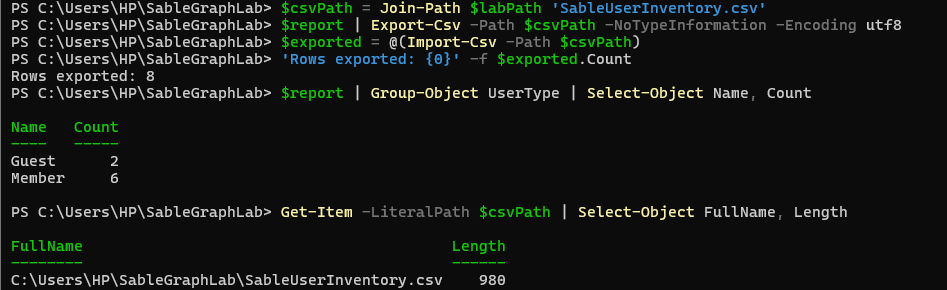 8 rows were exported: 2 guest users and 6 members.
I opened the CSV in Excel to check the columns. Only one user has a department filled in (IT). Blank departments are normal when nobody entered the value.
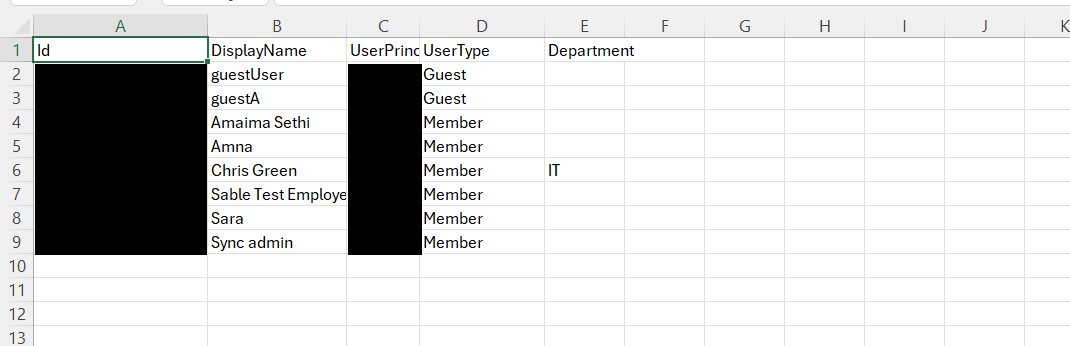 The Id and email columns are hidden in this screenshot.
Finally I compared the file with the Entra portal, which also shows 8 users.
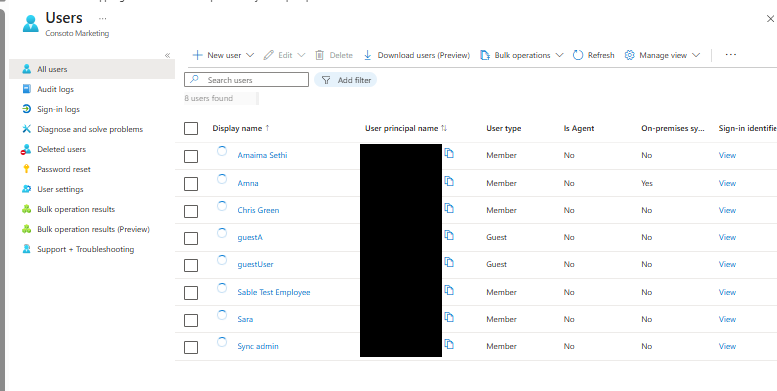
Why I export $report and not the Format-Table output. Format-Table creates display objects that are only meant for the screen. Exporting them would save formatting data instead of the real values. Exporting the selected records keeps the correct columns.
Other options. Invoke-MgGraphRequest can call the Graph REST endpoint directly if I want full control. Get-MgUser also supports -Filter and -Top when I need only some users. For the output, ConvertTo-Json can save the same data as JSON if another tool needs that format.
Step 7: Remove the certificate and test a new login
Purpose. This tests what happens when an app credential is taken away. Removing a certificate should stop new logins that use it. It does not cancel an access token that was already issued.
What I did. I deleted the certificate in Certificates & secrets, choosing the one with my saved thumbprint, at about 7:49 pm.
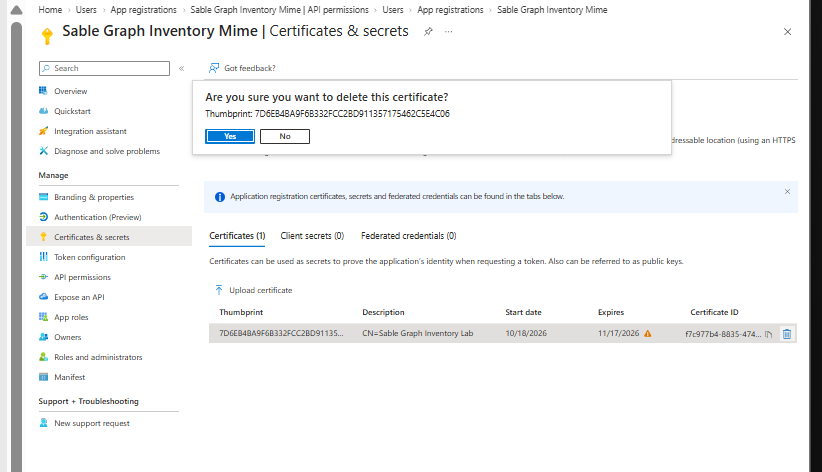
I ran Disconnect-MgGraph and closed the PowerShell window completely, so that no old token could be reused. Then I opened a new PowerShell 7 window and tried to connect again.
Import-Module Microsoft.Graph.Authentication
Import-Module Microsoft.Graph.Users
$tenantId   = '<TENANT_ID>'
$clientId   = '<CLIENT_ID>'
$thumbprint = '<THUMBPRINT>'
$connection = @{
    TenantId = $tenantId
    ClientId = $clientId
    CertificateThumbprint = $thumbprint
    ContextScope = 'Process'
    NoWelcome = $true
    ErrorAction = 'Stop'
}
try {
    Connect-MgGraph @connection
    Get-MgUser -Top 1 -ErrorAction Stop | Out-Null
    Write-Warning 'Access still succeeded. Record and investigate.'
} catch {
    $_.Exception.Message
}
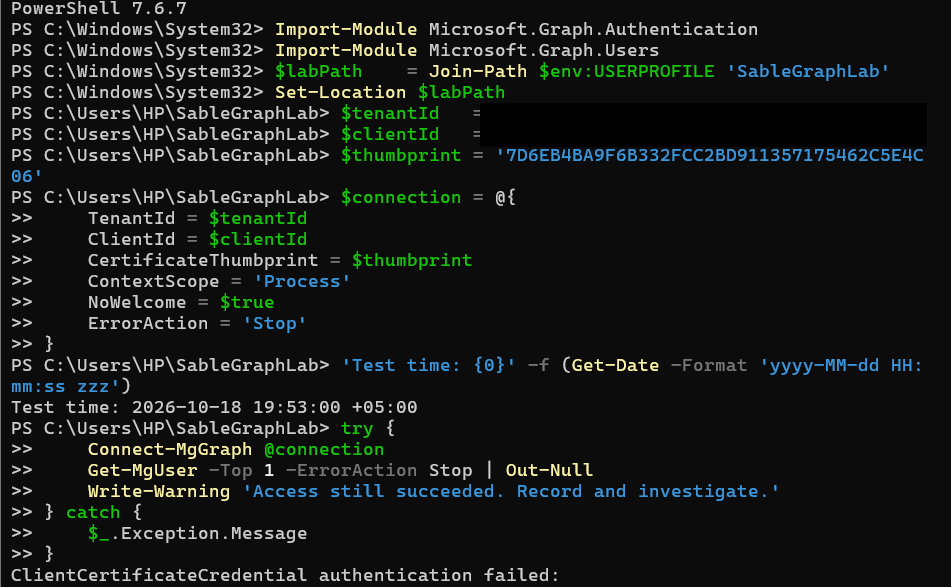 At 19:53:00 (+05:00) the new login failed with:
 ClientCertificateCredential authentication failed.
I also checked that the private key was still on my computer. This shows that the failure came from Entra, not from a missing local key.
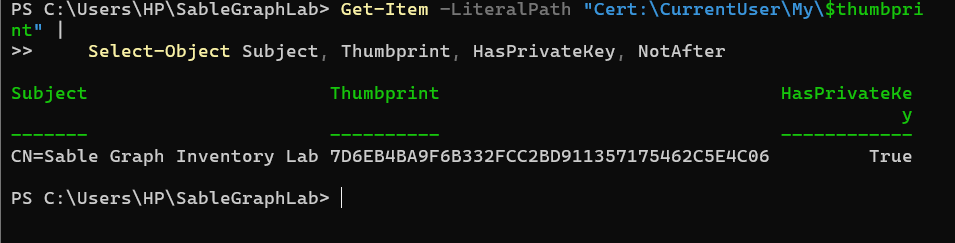
HasPrivateKey is True.
Why a fresh window. An old window may still hold a valid access token, and that token would keep working until it expires, even after the certificate is gone. Access tokens usually last about an hour or more. A new process has no token, so it has to authenticate again, and that is what this test needs.
Other options. Deleting the certificate is only one way to cut off an app. I could also disable sign-in for the service principal under Enterprise applications, remove its permission or admin consent, or delete the whole app. Each one stops new tokens, but none of them cancels tokens that are already issued.
Step 8: Restore the certificate
Purpose. This shows that access comes back when the matching certificate is registered again, and that the private key on my computer is what really matters.
What I did. I uploaded the same SableGraphInventory.cer file again. I did not create a new certificate, because that would change the test.
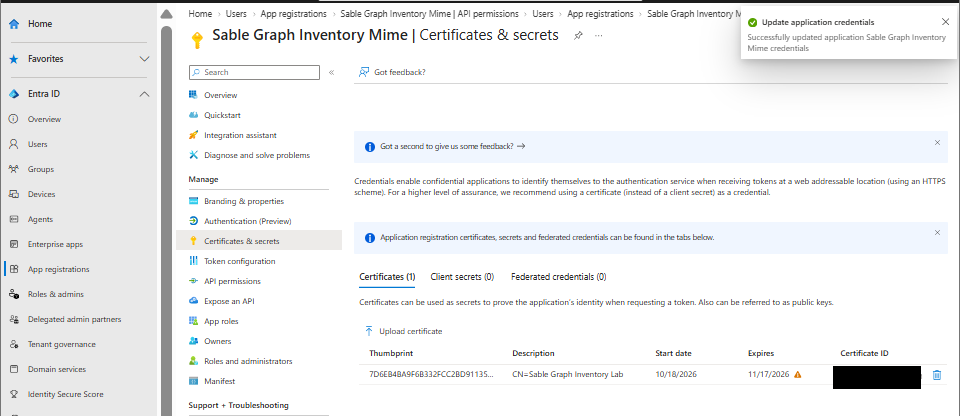
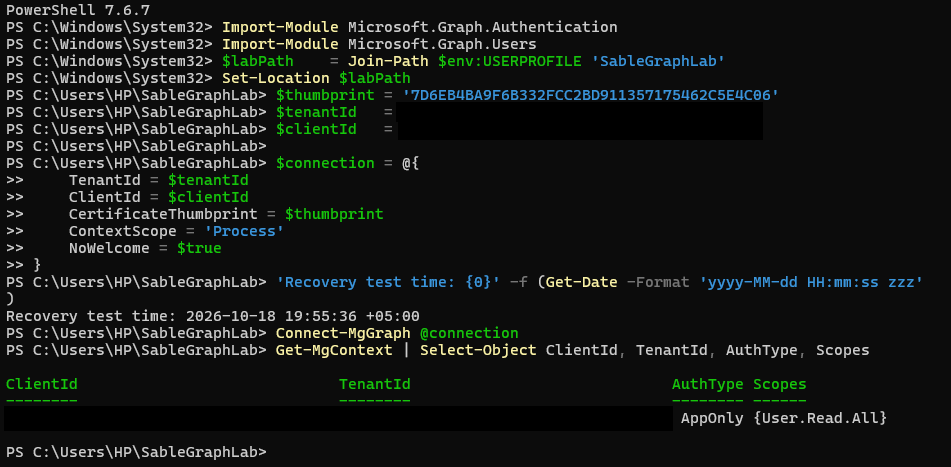
After waiting a few minutes, I opened a new PowerShell window, set the variables again, and connected. The connection worked again with AppOnly and the User.Read.All scope, at 19:55:36.
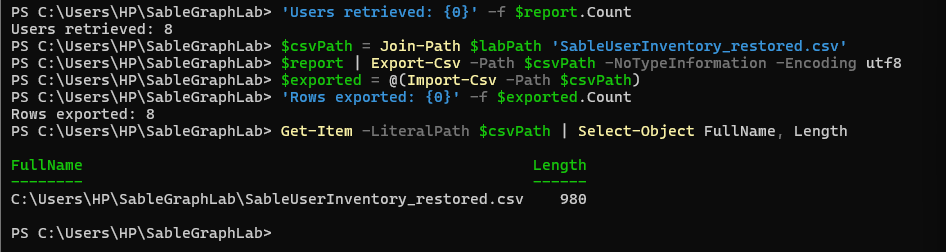
Then I ran the user query again and exported a second CSV. It again retrieved 8 users and exported 8 rows, with the same file size as the first export.
Other options. In real life, certificates are rotated: a new certificate is added first, the script is switched to it, and only then is the old one removed. That avoids any time when the app cannot log in.
Step 9: Clean up
Purpose. Lab credentials should not be left behind. An old app with a valid certificate and read access to the whole directory is a risk.
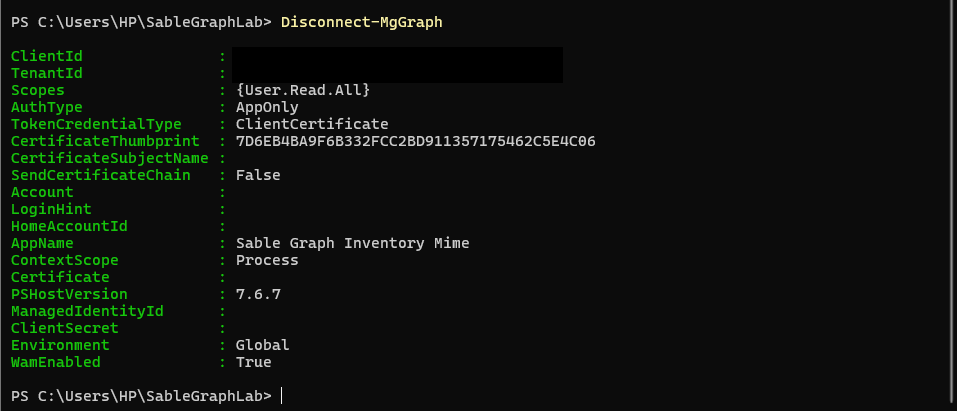
What I did. I ran Disconnect-MgGraph to end the session.
Then I deleted the app registration in the portal. The app no longer appears in the list.
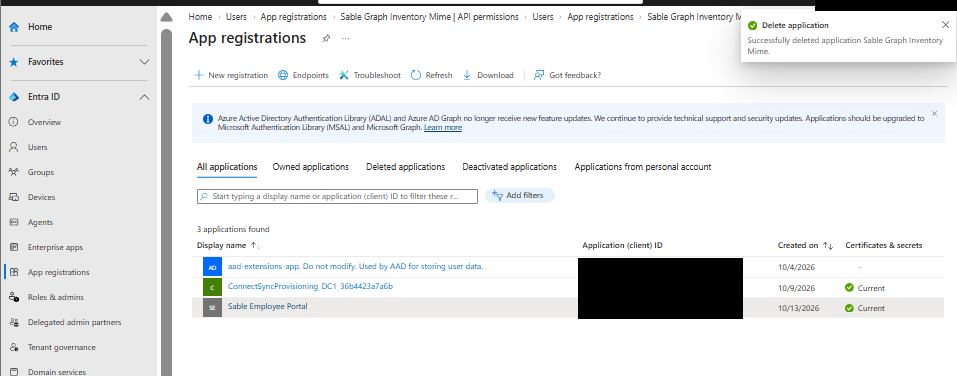 The IDs of the other apps in the list are hidden.
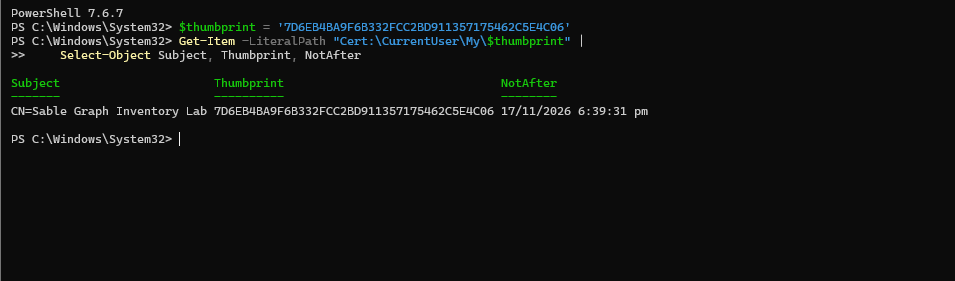
Last, I removed the certificate and its private key from my computer. I first looked at the certificate to make sure it was the right one.
$thumbprint = '<THUMBPRINT>'
Get-Item -LiteralPath "Cert:\CurrentUser\My\$thumbprint" |
    Select-Object Subject, Thumbprint, NotAfter
Then I removed it with -DeleteKey, which also deletes the private key.
Remove-Item -LiteralPath "Cert:\CurrentUser\My\$thumbprint" -DeleteKey
 The command printed no error, so the removal finished.
Other options. The app can also be removed with Remove-MgApplication. In Entra, a deleted app registration stays in the Deleted applications tab for a while and can be restored, so it can also be deleted permanently from that tab.
Key takeaways
Authentication and authorization are separate. The login worked as soon as the certificate was uploaded, but the app could not read users until the permission was granted. Checking AuthType is not enough, and a real query is the proof.
Read-only is not harmless. User.Read.All covers every user in the tenant, not only my test accounts. Someone who stole the private key together with the client ID and tenant ID could log in as the app from anywhere and read the whole user list until the certificate was removed or expired. That list helps with phishing and mapping an organization.
Removing a credential has limits. It stops new logins, but tokens that were already issued keep working until they expire. This is why the test used a fresh process, and why a real incident response also needs other steps.
Least privilege and cleanup matter. I used one read-only permission, a short-lived certificate with a non-exportable key, and I deleted the app, the certificate, and the key when I was done.